Filters
A filter shows only the cards you care about right now, and hides the rest until you clear it. Nothing is moved or changed: the hidden cards are still there.
Late and due today
When cards on the board are late or due today, 2 late and 3 due today show next to Filter. Click one to see only those cards; click it again to see everything. Completed cards aren't counted.
Filter by words
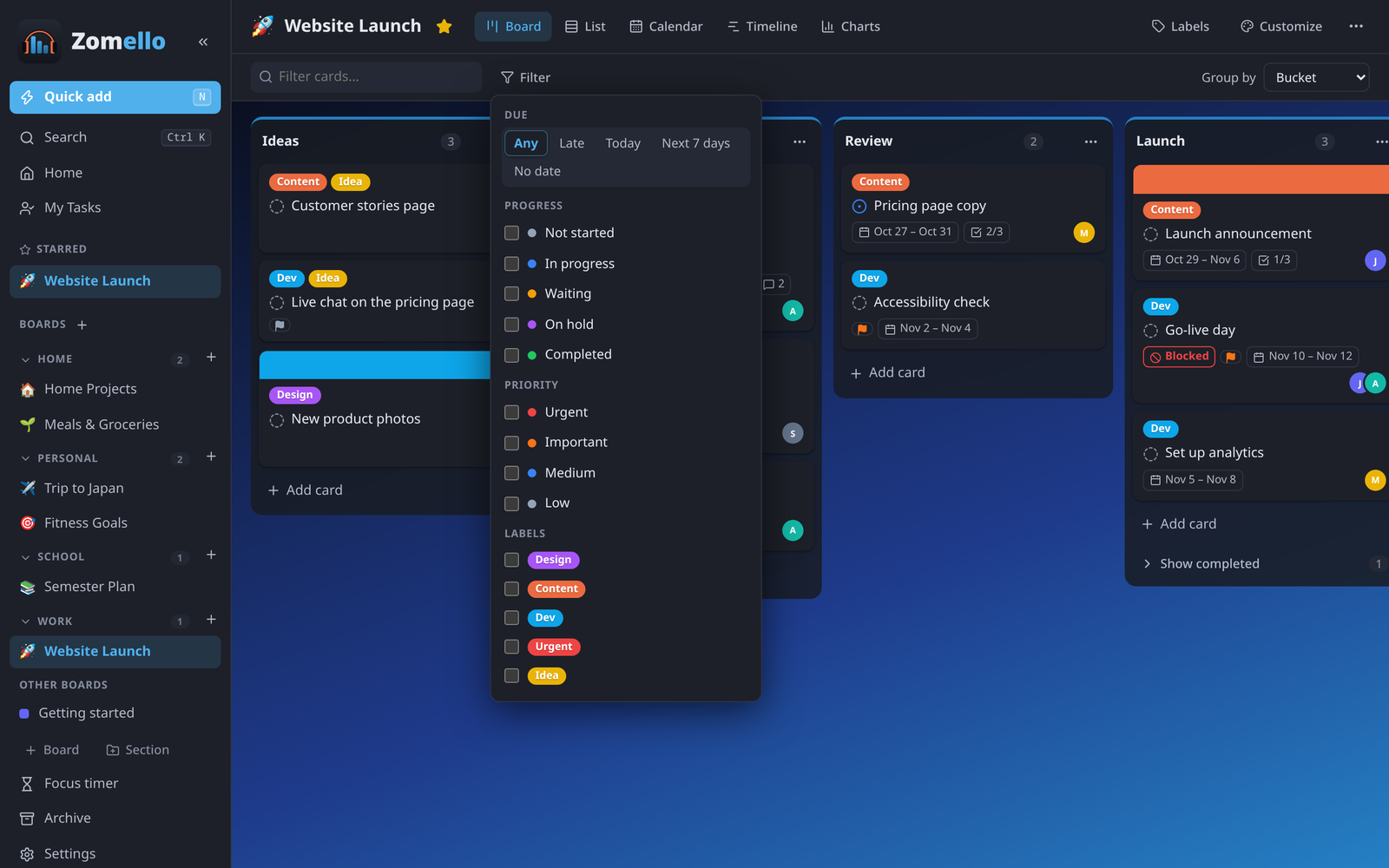
Type in Filter cards… at the top of a board. Cards stay on screen when the words appear in their title, description, checklist, notes or file names. On a computer, press / to jump there.
The Filter menu
Filter next to the box narrows the board further:
| Filter | Shows cards that are… |
|---|---|
| Due | Late (past their due date and not completed), due Today, due in the Next 7 days (today included), or have No date |
| Progress | Not started, In progress, Waiting, On hold or Completed |
| Priority | Urgent, Important, Medium or Low |
| Blocked | Blocked (waiting on an unfinished task) or Not blocked. Shown when Linking tasks is on in Settings > Features |
| Labels | Wearing any of the labels you tick, or with No labels. Not next to a label hides cards wearing it |
| Assigned to | Assigned to anyone you tick, or Unassigned |
| Custom fields | Each of the board's custom fields: its choices, Ticked / Not ticked for a checkbox, or Filled in / Empty for the rest |
How they combine: ticking more than one thing in the same group shows cards that match any of them (Urgent or Important). Choices in different groups must all match (Urgent and labelled "Work" and due this week).
The button shows how many choices are on, like Filter (3), and the toolbar shows how many cards match. Clear turns everything off.
Saved filters
Use the same filter often? Set it up, then type a name under Saved filters at the top of the Filter menu and press Save. Next time, pick it from the same place. The × next to a saved filter deletes it (not the cards).
Saved filters belong to the board you made them on.
Show a card's linked tasks
A card's menu (right-click it, or press and hold it on a phone) has Show related tasks when the card has sub-tasks, a parent card or linked tasks. The board then shows only that card and the cards linked to it.
- Whole chain follows the links all the way: sub-tasks of sub-tasks, and what those are linked to.
- The × on the "Related to…" chip goes back to the full board.
Good to know
- Every view is filtered: Board, List, Calendar, Timeline and Charts all show only the matching cards, so Charts can count just one person's tasks, for example.
- Each board remembers its own filter until you clear it, even after closing Zomello. If a board looks emptier than it should, check for Clear in the toolbar.
- Adding a card while a filter is on works as usual. If the new card doesn't match the filter, it's hidden right away: clear the filter to see it.
- Change all the matching cards at once: with a filter on, Ctrl A selects every card it shows, then the bar at the bottom changes them together. See Select several cards.
- Group by (on the right of the toolbar) isn't a filter, but works well with one: group the filtered cards by person, priority, progress or due date instead of by bucket.
Examples
- What's on my plate this week: Assigned to you, Due Next 7 days. Save it as "My week".
- What's stuck: Progress Waiting and On hold.
- Overdue and important: Due Late, Priority Urgent and Important.
- Nobody's doing it: Assigned to Unassigned, Progress Not started.
- Ready to start: Blocked Not blocked, Progress Not started.
- Everything but the chores: Not on the "Chores" label.
Across all boards
Filters work on one board. To look across every board, use Search (Ctrl K), My Tasks (everything assigned to you) or My Day (what's late, due and planned today). See Home, My Tasks and search.