
Cards in depth
Everything a card can do beyond the basics. Open any card to follow along.
Repeating tasks
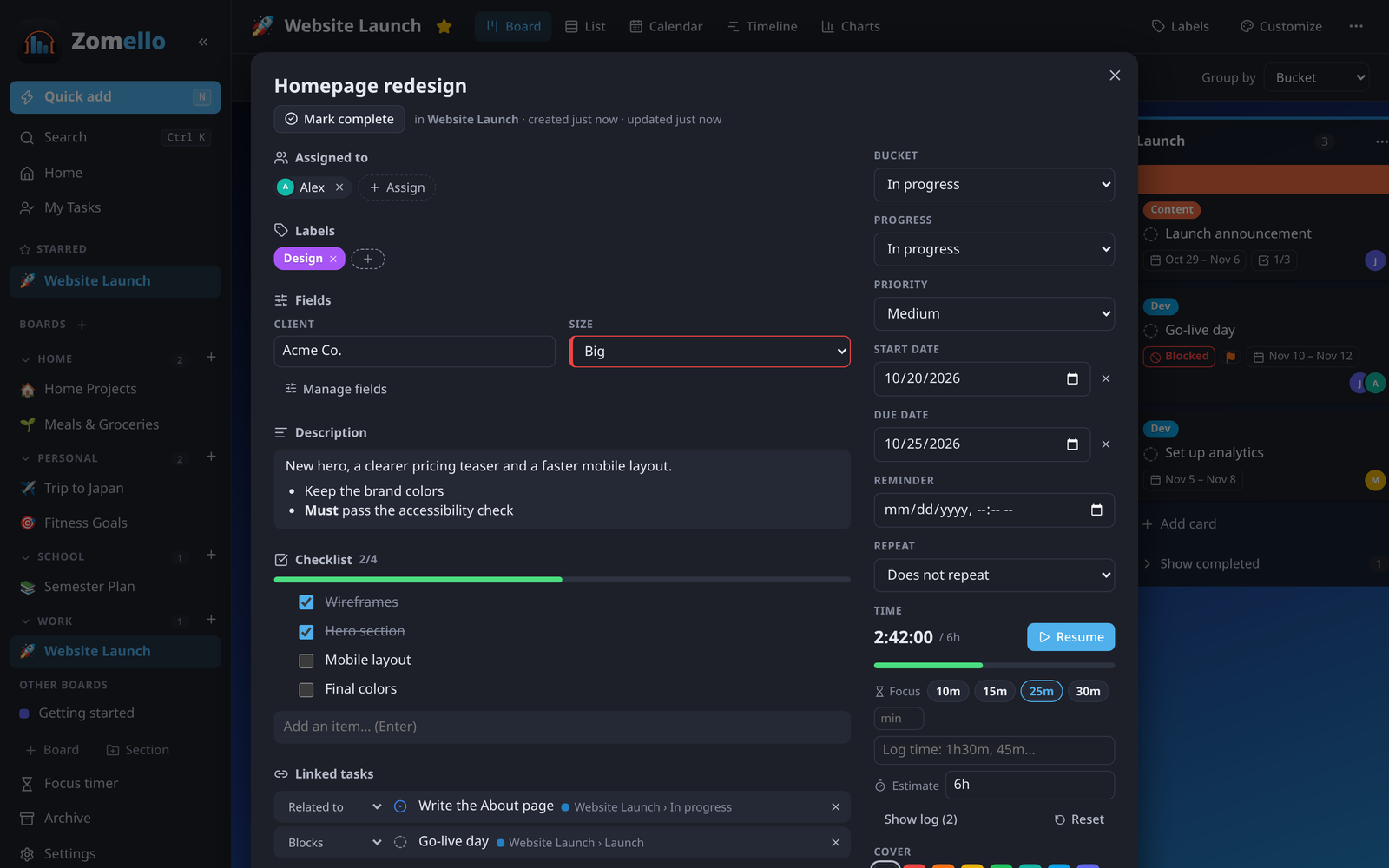
Repeat (in the card, or right-click > Repeat) makes a card come back:
- Daily, Weekdays, Weekly, Every 2 weeks, Monthly, Yearly, or Custom…
- Custom: every N days, weeks, months or years; for weekly, the days of the week; and optionally until a date.
When you complete a repeating card, Zomello makes the next one with the next due date, so chores never fall off the board. The card shows a repeat symbol and the rule.
Reminders and the daily summary
- Reminder (in the card) picks a date and time. Right-click > Remind me has shortcuts: In 1 hour, In 3 hours, Tomorrow 9:00, Next Monday 9:00.
- Settings > Reminders > Daily summary sends one notification a day (at the time you choose) listing what's late and due today.
- Notifications appear while Zomello is running. On a computer, turn on Settings > Desktop app > Keep running in the tray so they keep coming after you close the window.
- Send a test notification in Settings checks they work.
Checklists and sub-tasks
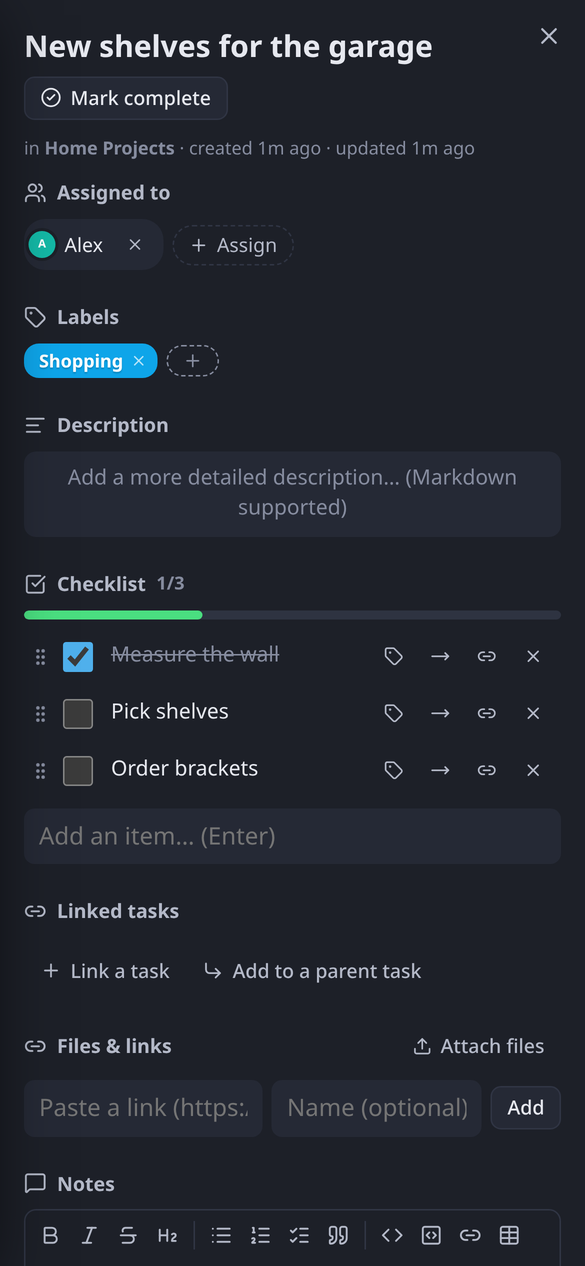
- Add an item… then Enter. Keep typing to add more.
- Drag the dots on the left to reorder, or hover between two items and click + to insert one there.
- Each item can have labels (the tag icon).
- The card shows a count (2/5) and a progress bar; the board can also show the items themselves (see Customizing a board).
Turn a step into its own task (sub-tasks)
Big steps deserve their own card:
- Spin off into its own task (the arrow on an item): pick a bucket, and the item becomes a new card. The item stays in the checklist, linked to it: ticking either one ticks both.
- Link to an existing task (the link icon on an item): the item now mirrors another card.
- Add to a parent task (under Linked tasks): makes this card a sub-task of another card.
Cards show Sub-task and sub-task count badges. Pointing at one highlights its parent or its sub-tasks on the board. Zomello stops you from making loops (a card can't end up inside itself).
Linked tasks
Link a task connects two cards:
- Related to: just connected.
- Blocks / Blocked by: one has to finish first. A blocked card shows a red Blocked badge until the other is done.
Click a linked card to open it. A trail at the top shows the cards you came through; Alt ← goes back. Right-click > Show related tasks filters the board to a card and everything linked to it.
Files, links and covers
- Attach files (or drag files from your file manager onto the open card). Files are copied into Zomello, so they keep working if you move or delete the original.
- Paste a link (a website or a file path) with an optional name. A file path can be copied in later with the copy button next to it.
- Pictures show a preview; click to see them big (← and → for the next one).
- Cover: a color strip, or one of the card's pictures. Choose Strip (a band on top) or Full card (the picture fills the card).
Notes
Notes are a running log on the card: type, then Save note (or Ctrl Enter). A note you're typing is kept even if you close the card. Notes support the same formatting as the description.
Time tracking and focus
| Feature | How |
|---|---|
| Timer | Start in the card's Time section (or T while pointing at the card). One timer runs at a time and shows in the menu; Pause keeps the time so far |
| Log time | Type 1h30m or 45m and press Enter |
| Estimate | How long you think it takes, e.g. 6h. The card and Charts compare tracked time against it |
| Focus | A countdown (10, 15, 25, 30 minutes or your own) that also tracks the time on this card |
| Show log | Every time entry, each one removable; Reset clears all |
Moving a card
- Move to board (in the card or its menu) moves it, with its checklist, notes and files, to another board's bucket.
- Move to bucket in the menu, or just drag it.
- Duplicate makes a copy next to it.
Activity
Activity at the bottom of the card lists every change: moves, progress, dates, priority, people, renames and archiving, with when they happened.
Hide what you don't use
Customize > Card details window hides card sections you never use on a board (for example time tracking on a shopping list). Nothing is deleted; tick it again to bring it back.