
Boards and sections
A board is one project, area or list: "Website Launch", "Home Projects", "Weekly Chores". You can have as many as you like.
Make a board
- + Board at the bottom of the menu, type a name, Enter.
- Or the + next to a section's name, to make it inside that section.
- Or ⋯ > New board with this layout on an existing board to reuse its buckets, labels and settings without the cards.
New boards start with To do, In progress and Done, and open in the view chosen in Settings > Appearance > New boards open in.
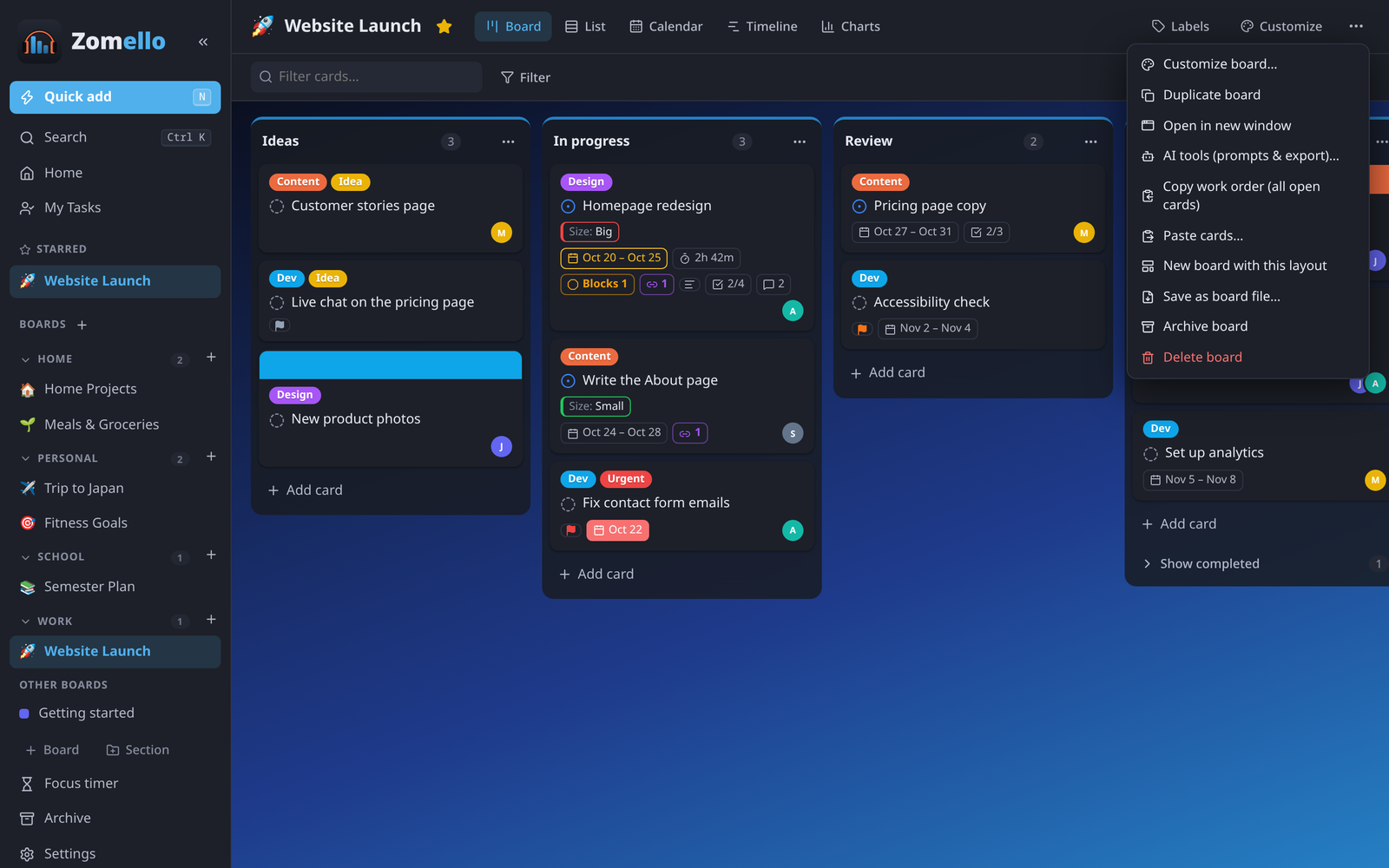
The board menu
Right-click a board in the menu (press and hold on a phone), or use ⋯ at the top right of the board:
| Option | What it does |
|---|---|
| Open / Open in new window | Opens it (a separate window on a computer; middle-click does the same) |
| Rename | Also: double-click the name in the menu, or click the title on the board |
| Category… | Puts it in a section, or makes a new one |
| Star | Pins it under Starred at the top of the menu |
| Customize… | Icon, color, background, what cards show and more (Customizing a board) |
| AI tools… / Copy work order | Optional helpers for using an AI assistant (AI tools) |
| Paste cards… | Adds cards you copied (Copying and pasting cards) |
| Duplicate | A copy with all its cards |
| New board with this layout | A copy without cards |
| Move to… / Copy to… | Another device or server (phone and tablet apps) |
| Private: only on this device | Never shown on your other devices (Sharing between your devices) |
| Save as board file… | A .zomello file to send anyone (Board files) |
| Archive / Delete | Archive hides it (find it under Archive); Delete removes it, with Undo right after |
Sections
Sections group boards in the menu and on Home, like notebooks: Work, Home, School, Personal.
- Make one: + Section at the bottom of the menu.
- Put a board in it: drag the board onto the section, or right-click > Category….
- Fold it: click the arrow next to its name.
- Rename or remove: right-click the section's name. Removing a section keeps its boards; they move to Other boards.
- A section stays in the menu when its last board leaves, so you can fill it again later.
Reorder boards
Drag boards up and down in the menu. Drop one between two boards of another section to move it there in the same step.
Archive
Archive (in the menu) lists archived boards, buckets and cards. Click Restore to bring one back, or delete it for good from there.