
Moving boards between devices
Move a board (or copy it) from your computer to your phone, or back. It brings its buckets, cards and attached files.
On the phone
- Open the menu. Each place has a heading: This phone, Computer, servers.
- Press and hold a board, then drag it onto another place's heading and let go.
- Choose Move (it leaves where it was) or Copy (it stays there too).

Zomello briefly switches to the other place, adds the board there, and opens it.
You can also press and hold a board (without dragging) and choose Move to… or Copy to….
On the computer
When your phone is connected (same Wi‑Fi, Zomello open on it), it shows in the computer's sidebar with its boards.
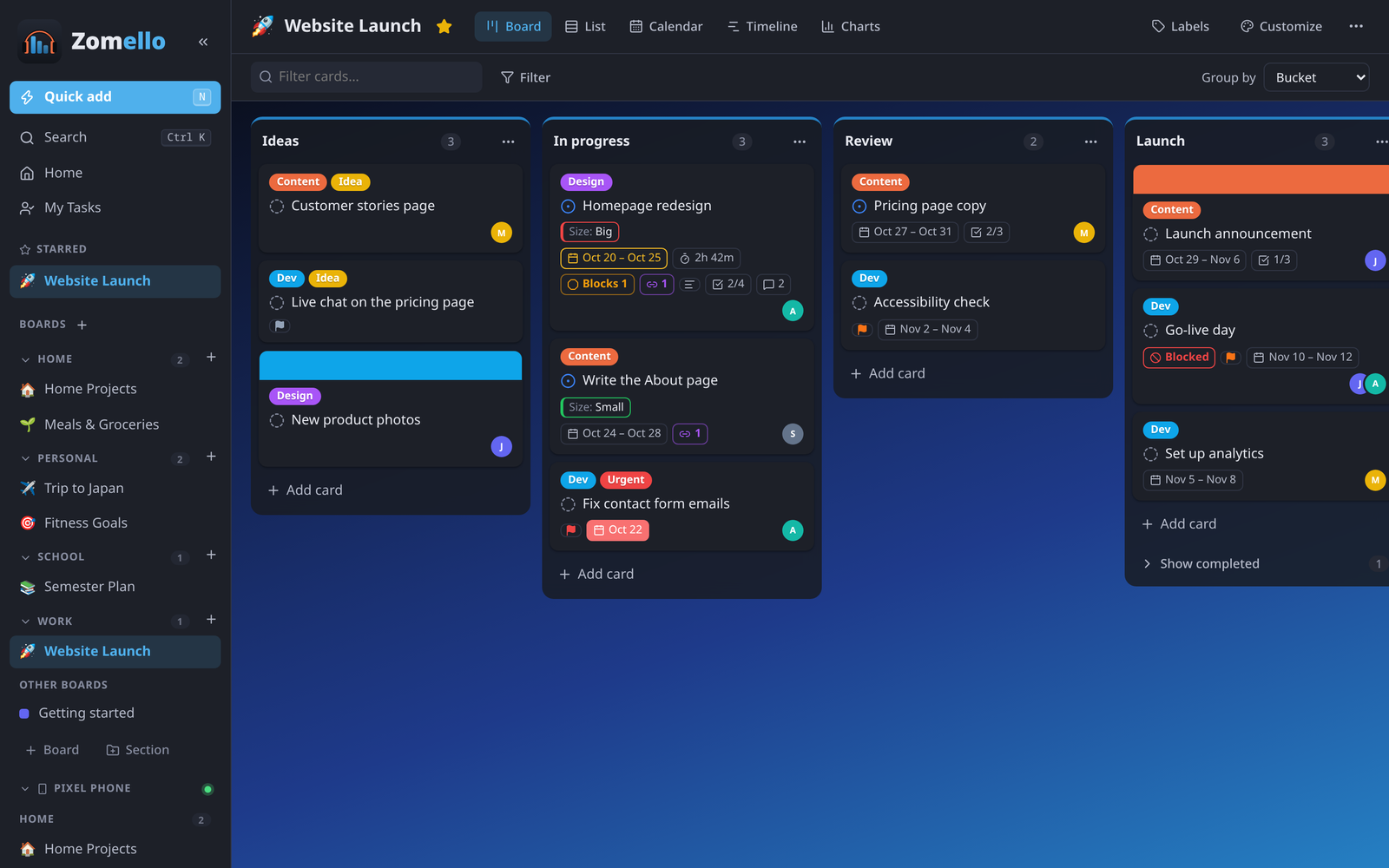
- Computer to phone: drag one of your boards onto the phone's name, then choose Move or Copy. Or right-click the board > Move to (phone) / Copy to (phone).
- Phone to computer: drag one of the phone's boards into your own boards. Or right-click it > Move to this computer / Copy to this computer.
Attached files
Files attached to a phone's board live on the phone. Bringing that board over from the computer copies everything except those files. To move them too, do it from the phone (it sends them along).
Good to know
- A move only removes the board from the old place once it has been safely handed over.
- If the other place can't be reached, nothing changes and you get a message.
- Copying a board that already exists there makes "Board name (2)".