
Using Zomello on a phone or tablet
The Android, iPhone and iPad apps have everything the computer has, arranged for touch.
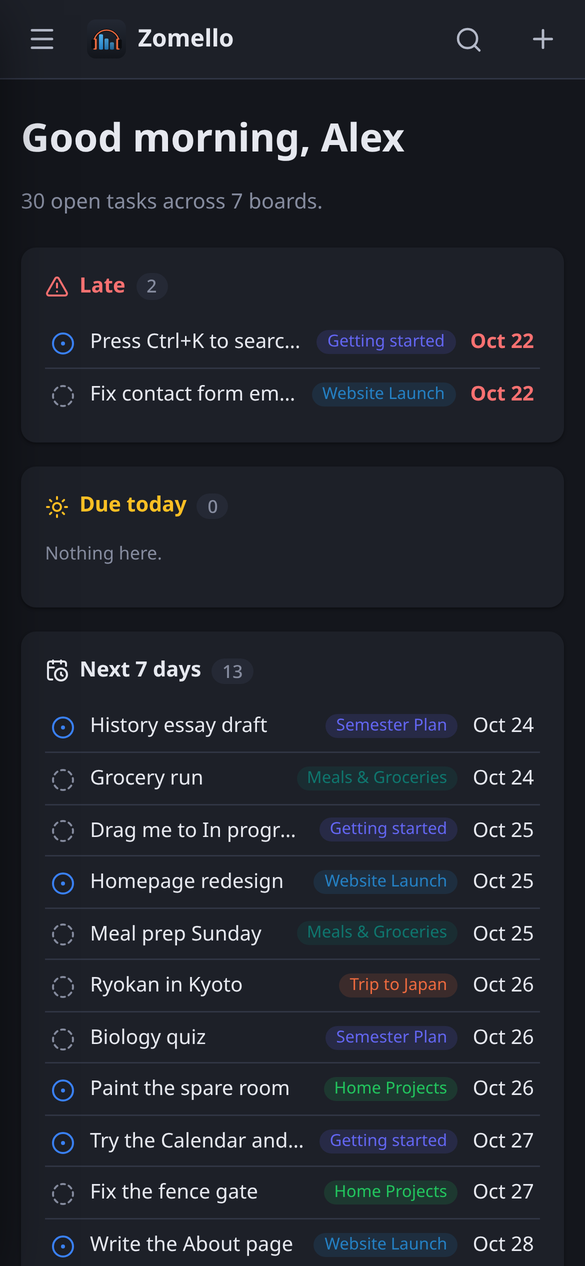
Getting around
- The menu: tap the three lines at the top left. It slides in with Home, My Tasks, your boards and Settings. Tap outside it to close.
- Places: the menu has a heading for each place your boards live: This phone (or This iPad), Computer and any Zomello Servers. Tap a heading to fold it. Tap a board under another place to go there.
- Search (magnifier) and Quick add (+) are at the top right.
- Back: the phone's back gesture or button closes windows and menus first, then goes back a page.
Touch gestures
| Gesture | Does |
|---|---|
| Tap a card | Opens it |
| Press and hold a card, bucket, board or section | Opens its menu (the same as right-click on a computer) |
| Press and hold, then drag | Moves a card, bucket or board |
| Swipe sideways on a board | Next or previous bucket |
| Drag a board onto another place's heading | Moves or copies it there (Moving boards) |
Phone-friendly details
- One bucket fills the screen on a board; the Calendar fills the width with unscheduled cards below.
- Windows such as a card or Paste cards open full screen.
- Keyboard hints are left out on touch screens.
- Your phone keeps its own theme and accessibility settings, even when it shows your computer's boards.
Saving and sharing files
- Save as board file… opens the system's Save screen (Android) or share sheet (iPhone and iPad). Afterwards Share sends it by email or chat.
- Paste cards… fills in from the clipboard when the phone allows it; otherwise press and hold in the box and choose Paste.
Without installing the app
If Phones & tablets is on in the desktop app, any phone's browser can open your computer's boards: scan the QR code from Pair a device. On Android, Chrome then offers Install app; on iPhone and iPad, use Share > Add to Home Screen. It works like an app, but only while the phone can reach your computer.