
Quick start
Everything you need for your first day with Zomello, in about ten minutes. When you want more, the advanced features and set-up scenarios are next.
1. Install Zomello
| Device | What to do |
|---|---|
| Windows 10/11 | Download Zomello_…_x64-setup.exe from the latest release and open it. If Windows says "Windows protected your PC", click More info > Run anyway. |
| Linux | Download the .deb (Ubuntu, Mint, Debian), .rpm (Fedora, openSUSE) or .AppImage (any) and open it. |
| Android | Install from Google Play, or download Zomello.apk from the release. |
| iPhone and iPad | Install from the App Store. |
| Just looking? | Try the online demo in your browser. Nothing to install. |
There's no account to make and nothing to sign up for. Your boards are saved on the device you're using.
2. Say hello
The first time Zomello opens, a short welcome guide asks:
- Your name. Tasks assigned to you then show up on Home and in My Tasks.
- Light, dark, or match your device.
You can change both later in Settings > People and Settings > Appearance. A Getting started board is waiting with one feature per card: open them in order, then delete the board (right-click it in the menu > Delete).
3. Find your way around
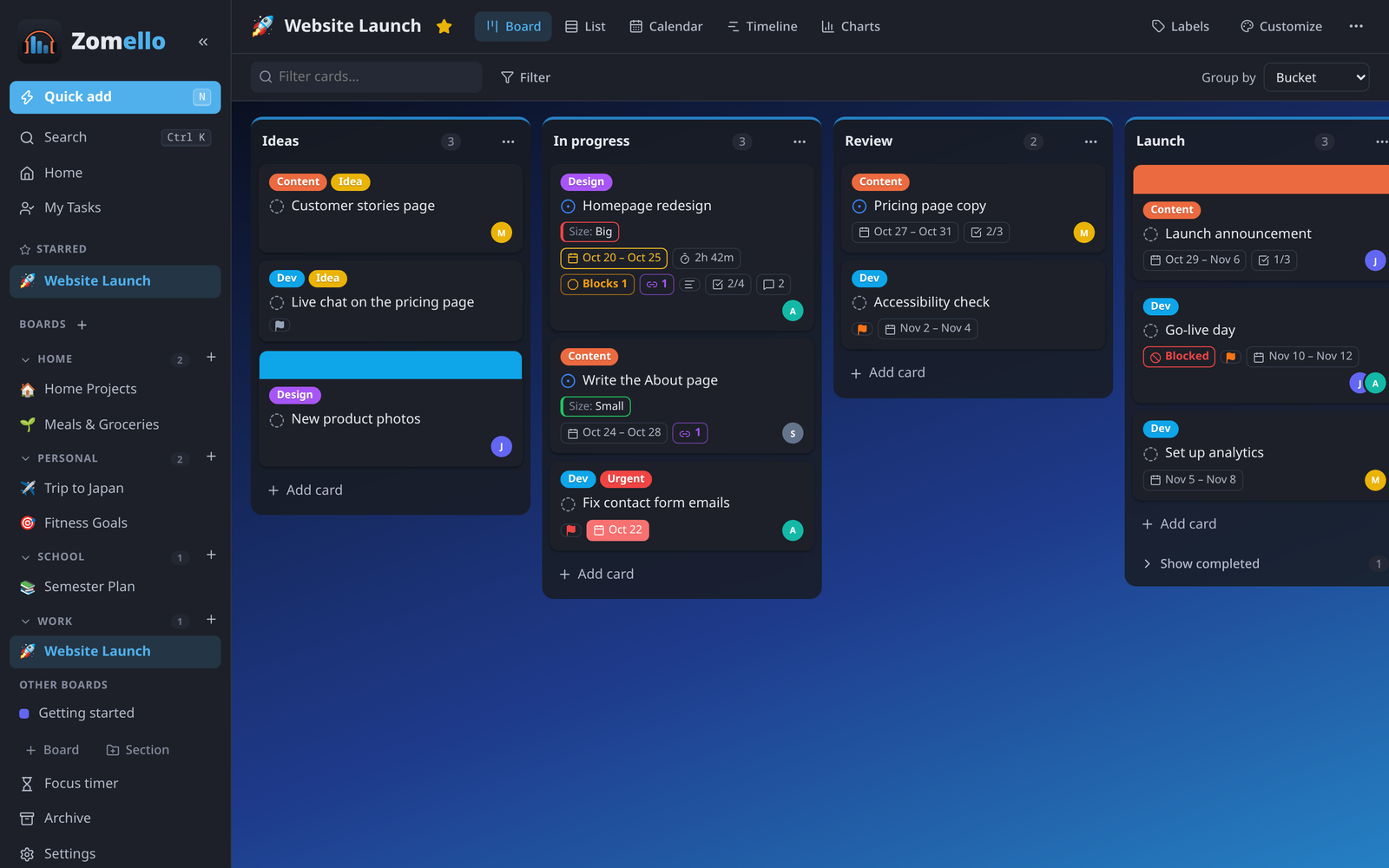
- The menu (left side): Home, My Tasks, your boards (grouped in sections), the focus timer, Archive, Settings and Help. On a phone, tap the menu button (three lines, top left) to open it.
- The board (middle): buckets side by side, cards inside them.
- The board's top bar: the board's name, the views (Board, List, Calendar, Timeline, Charts), Labels, Customize and ⋯ for more.
Right-click everything
Cards, buckets, boards and sections all have a menu with every option. On a phone or tablet, press and hold instead.
4. Make a board
- Click + Board at the bottom of the menu.
- Type a name, for example "Home Projects", and press Enter.
- The board starts with three buckets: To do, In progress and Done. Click a bucket's title to rename it, or + Add bucket to add more.
5. Add and move cards
- Under a bucket, click + Add card, type the task and press Enter. Keep typing to add more; press Esc when you're done.
- Drag a card to another bucket. Dropping it in In progress or Done updates its progress for you.
- Click a card to open it. Add a due date, a checklist, labels, people, notes or files. Everything saves as you type.
- Mark complete at the top of the card (or click the circle on the card itself). Completed cards fold away under Show completed at the bottom of the bucket.
6. Group your boards into sections
Sections are like notebooks in the menu: Work, Home, School.
- Click + Section at the bottom of the menu and name it.
- Drag boards into it. (Or right-click a board > Category….)
- The + next to a section's name makes a new board right inside it.
7. See what's due
- Home shows what's late, due today, coming up this week and in progress, across every board.
- My Tasks lists everything assigned to you.
- Calendar (on any board) shows cards by due date; drag a card to another day to move it.
8. Five habits that save time
| Do this | How |
|---|---|
| Add a task from anywhere | Quick add (press N on a computer, + at the top on a phone) |
| Find anything | Search (Ctrl K, or the magnifier on a phone) |
| Undo a mistake | Ctrl Z, or Undo on the message that appears |
| Get a reminder | Open a card > Reminder, or right-click > Remind me |
| Repeat a chore | Open a card > Repeat (daily, weekdays, weekly…) |
Where next?
- Phone and computer together: Your computer's boards on your phone
- Every card feature: Cards in depth
- Make a board look and work your way: Customizing a board
- Your situation, step by step: Set-up scenarios