Views
Every board can be shown five ways. Switch with the buttons next to the board's name; each board remembers its own view. New boards use the view chosen in Settings > Appearance > New boards open in.
Board
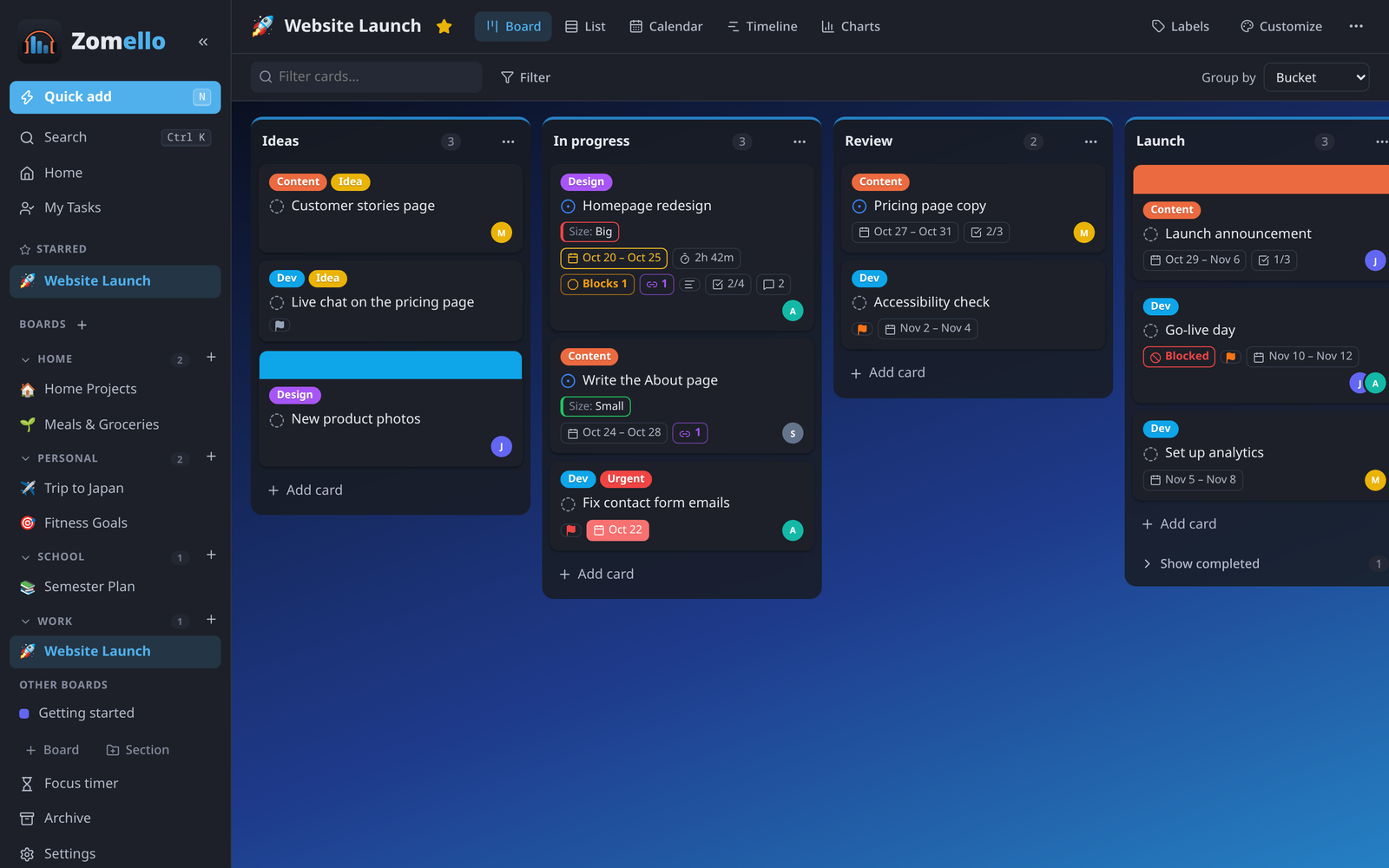
Buckets side by side, cards you drag between them.
Group by (top right) shows the same cards in columns by Progress, Priority, Assigned to, Label or Due date instead of by bucket. Dragging a card between those columns changes that property: drag it to "Urgent" and the card becomes urgent. (This works for progress, priority, person and due date; grouped by label, cards stay where they are.)
List
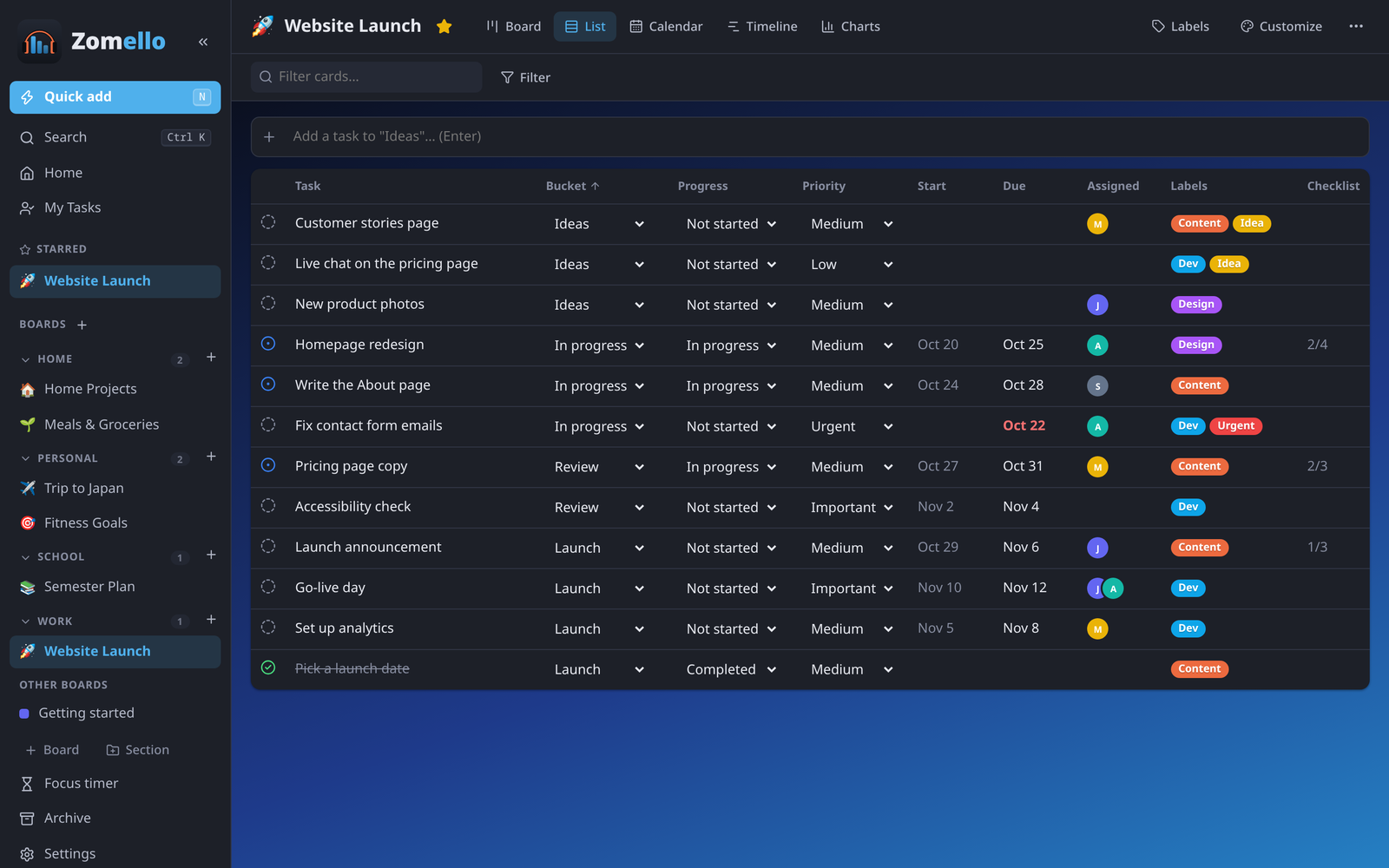
Every card in a table with its bucket, progress, priority, dates, people, labels and checklist count.
- Click a column title to sort; click again to reverse.
- Change bucket, progress or priority right in the row.
- Add a task to "To do"… at the top adds a card quickly.
Calendar
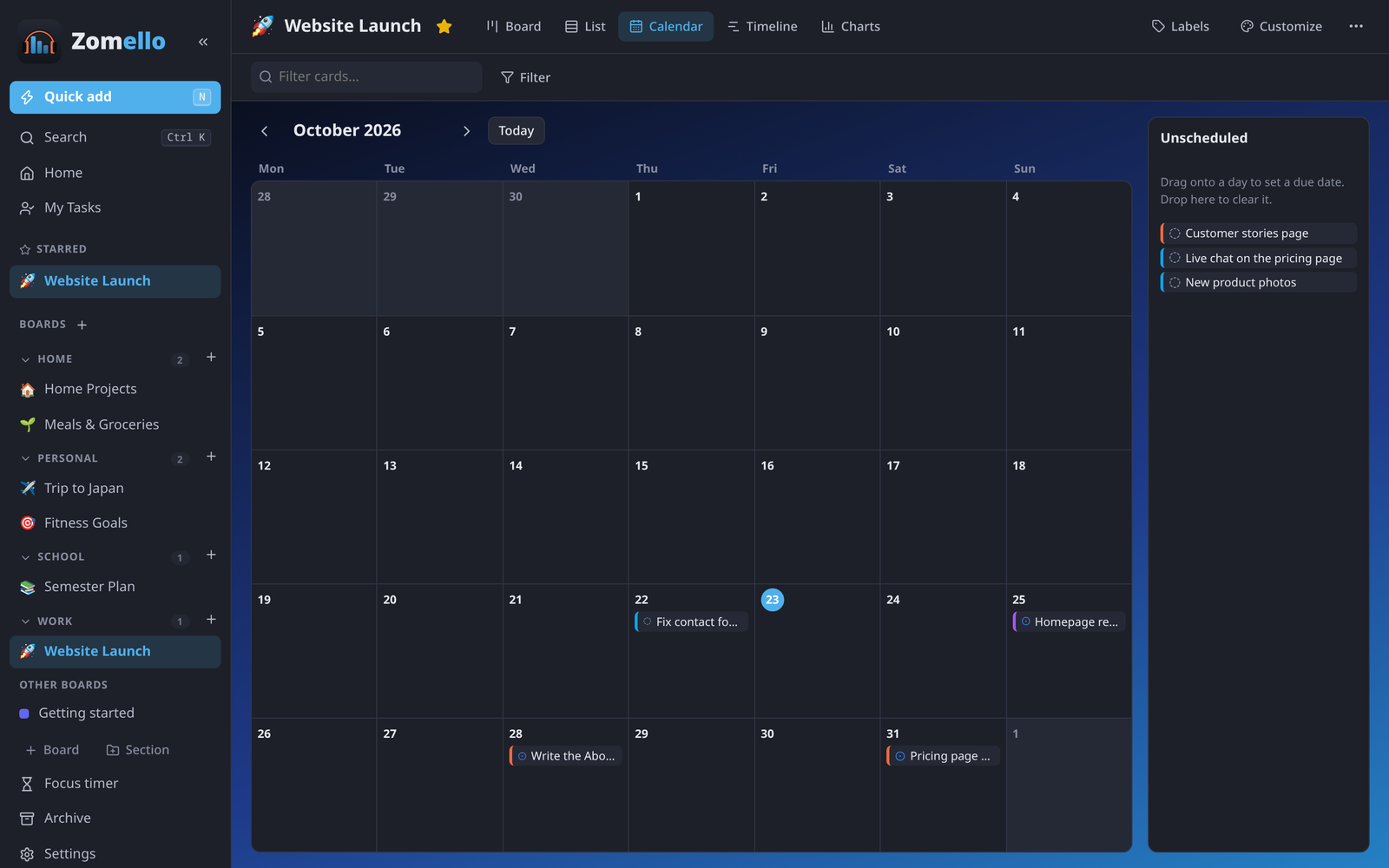
A month of cards by due date.
- Drag a card to another day to change its due date.
- The + on a day adds a card due that day.
- Unscheduled lists cards without a date: drag one onto a day to give it a date, or drag a card back to clear it.
- Events from your own calendars (Google, Outlook, Apple) can appear here too: see Calendar feeds.
- On a phone the month fills the screen and unscheduled cards are underneath.
Timeline
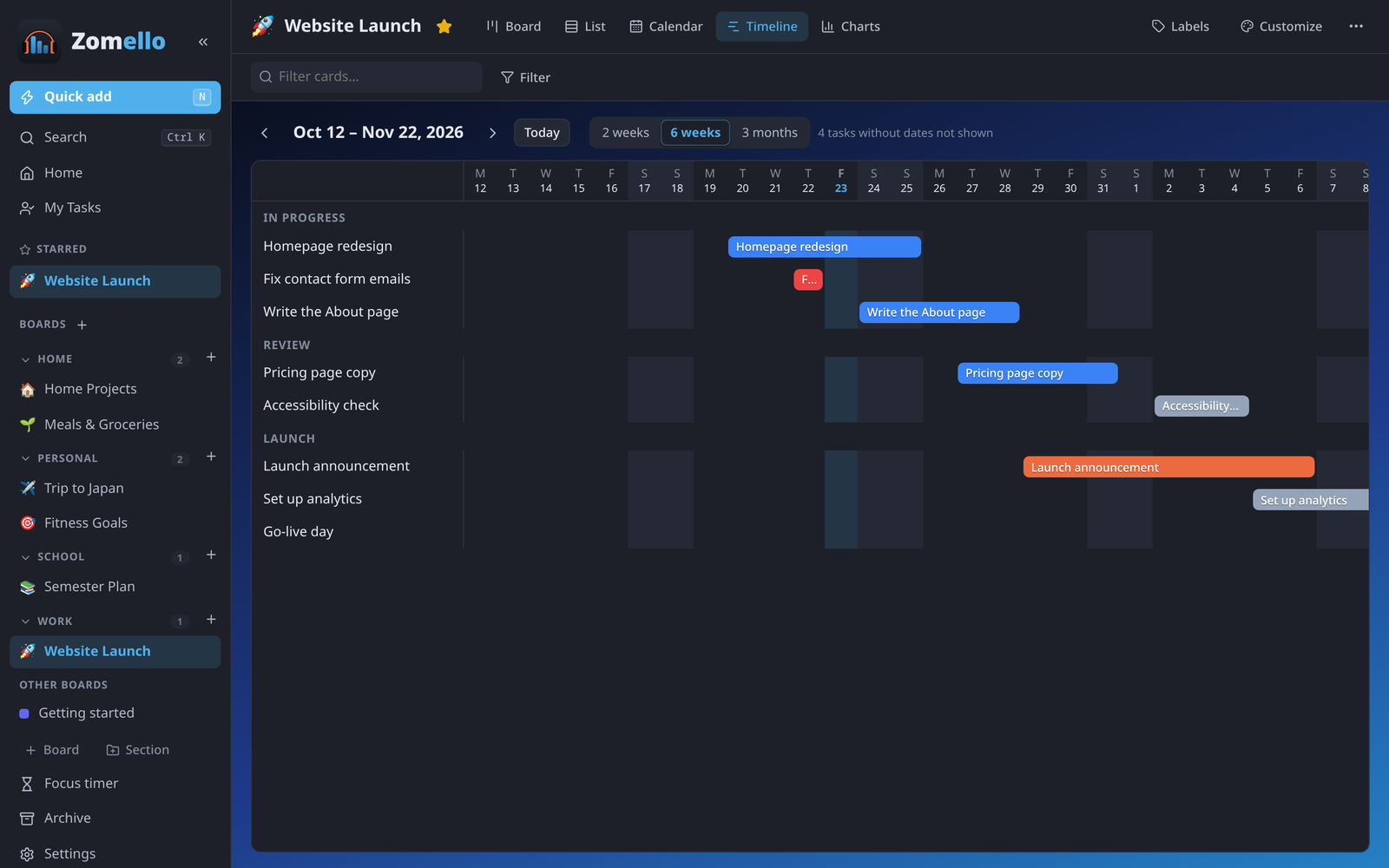
Cards with dates as bars from start to due date, grouped by bucket. Pick 2 weeks, 6 weeks or 3 months, move with the arrows, or Today to jump back. Click a bar to open the card. Cards without dates aren't shown (the count says how many).
Charts
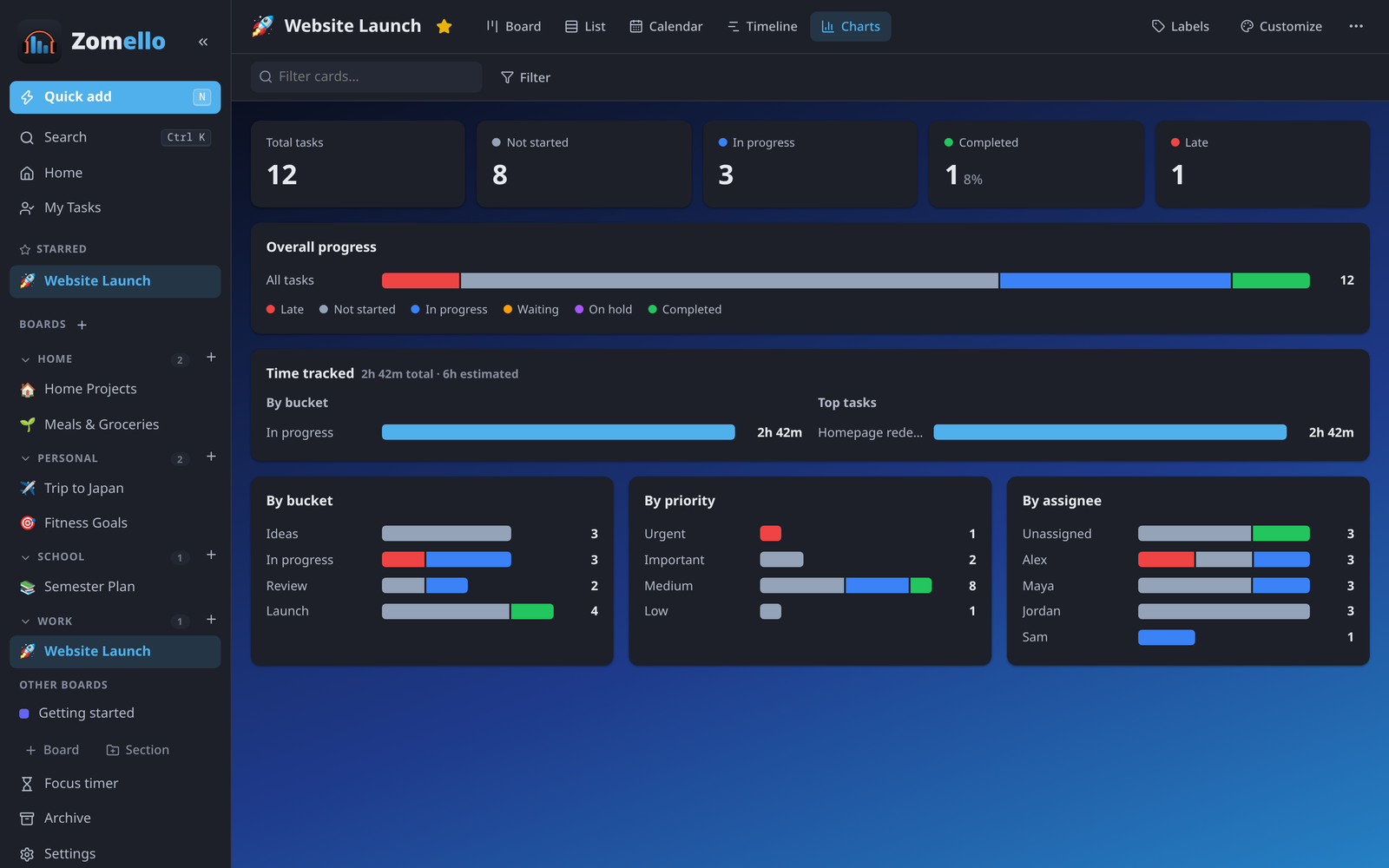
- Totals: all tasks, not started, in progress, completed (with a percentage) and late.
- Overall progress as one bar.
- Time tracked against estimates, and the tasks with the most time.
- By bucket, By priority and By assignee bars.
Filters (all views)
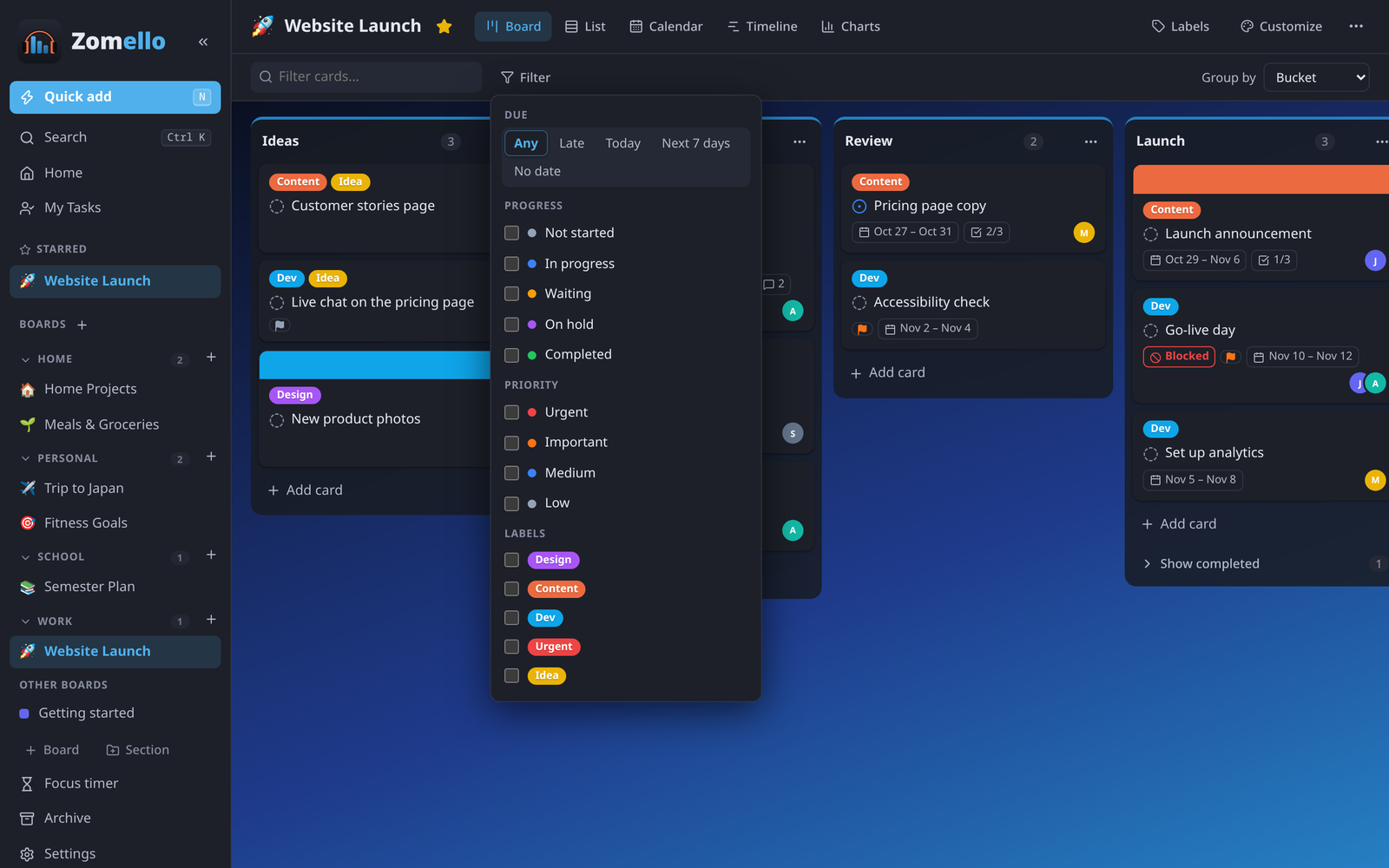
- Filter cards… narrows the board as you type (titles, descriptions, checklists, notes and file names). On a computer, / jumps there.
- Filter narrows by due date (late, today, next 7 days, no date), progress, priority, label and person. A dot on the button shows a filter is on.
- Show related tasks (in a card's menu) shows only that card and the cards linked to it.