
AI tools (optional)
There's no AI inside Zomello
Zomello doesn't contain, connect to or send anything to any AI service, and nothing here is needed to use it. These tools only write text you can copy into an assistant you already use (ChatGPT, Claude, Gemini, a local model…), and read its reply back if you paste it in. If you'd rather not use AI at all, simply ignore this page: nothing in Zomello depends on it.
What they're good for
- Turning a goal ("plan a kitchen remodel") into a board full of cards.
- Breaking a big card into steps.
- Sorting a messy bucket by priority, or estimating how long things take.
- Getting a status summary of a project.
- Handing a list of bugs or tasks to a coding assistant as a numbered work order.
Open the AI tools
- On a board: ⋯ > AI tools (prompts & export)…
- On a bucket: ⋯ > Ask AI for cards here… or Export bucket for AI…
- On a card: right-click > Hand to AI…
- With several cards selected (Ctrl click): Hand to AI…
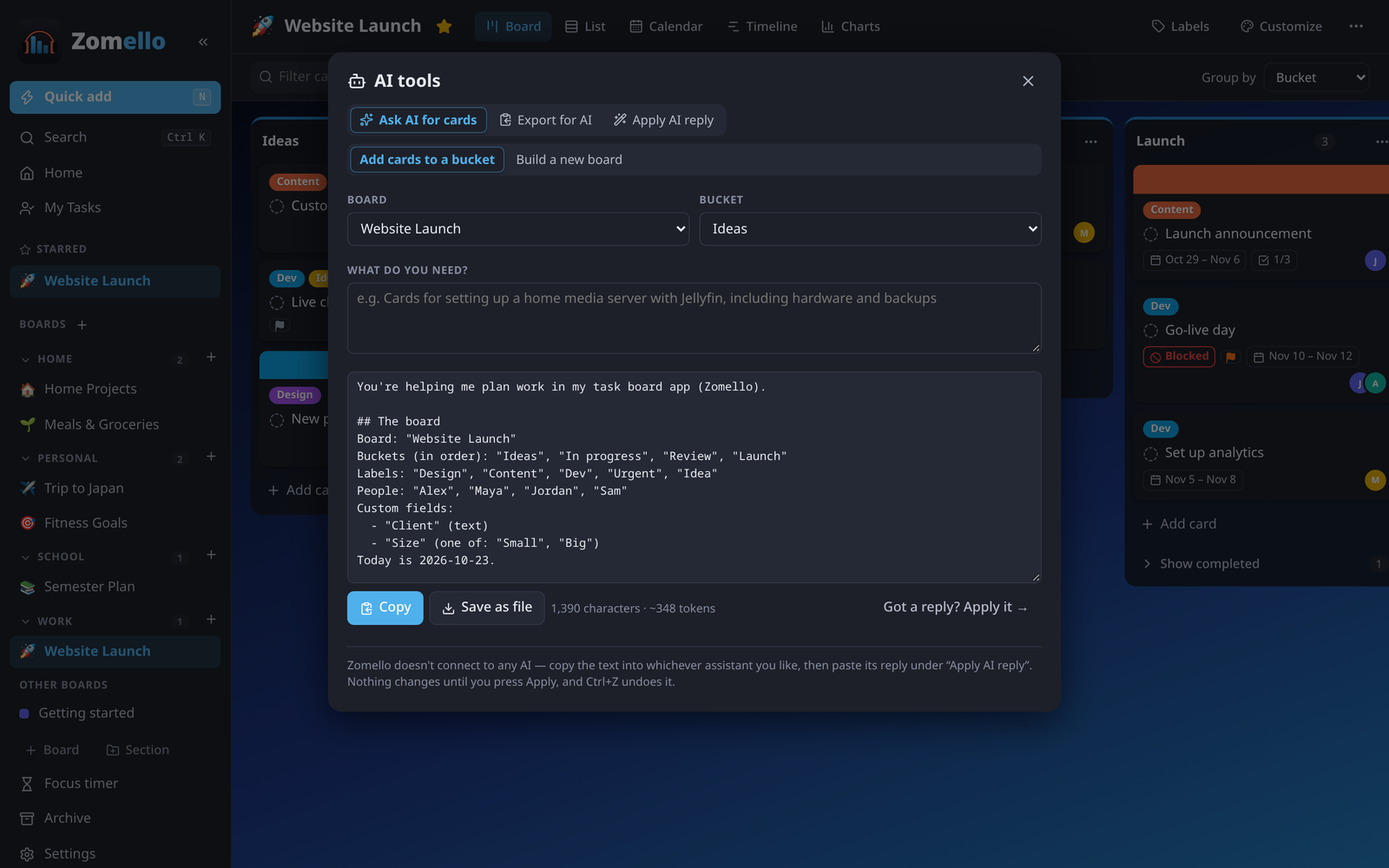
The window has three tabs.
1. Ask AI for cards
Pick Add cards to a bucket or Build a new board, choose where, and describe what you need ("cards for setting up a home media server"). Zomello writes a prompt that explains your board (its buckets, labels, people, fields and the About this board text) and the reply format. Copy it (or Save as file) and paste it into your assistant.
2. Export for AI
Choose what to send (the whole board, one bucket, or the cards matching your current filter) and what you'd like done:
- Do them (a numbered work order, for example for a coding assistant)
- Work through them (for example bugs)
- Break them down
- Prioritize & estimate
- Summarize status
- Something else… (your own request)
- Just the export (only the cards as text)
3. Apply AI reply
Paste the assistant's whole answer. Zomello finds the part it can use and shows what it will do: add cards (with sub-tasks linked), build a board, or update cards (progress, priority, dates, labels, notes, checklist items, bucket). Nothing changes until you press Apply, and Ctrl Z undoes it.
A plain bulleted list works too: each line becomes a card, and indented lines become its checklist.
Your privacy
Zomello never sends anything anywhere. What you copy into an assistant follows that assistant's own privacy rules, so leave out anything you wouldn't share there.