
Settings
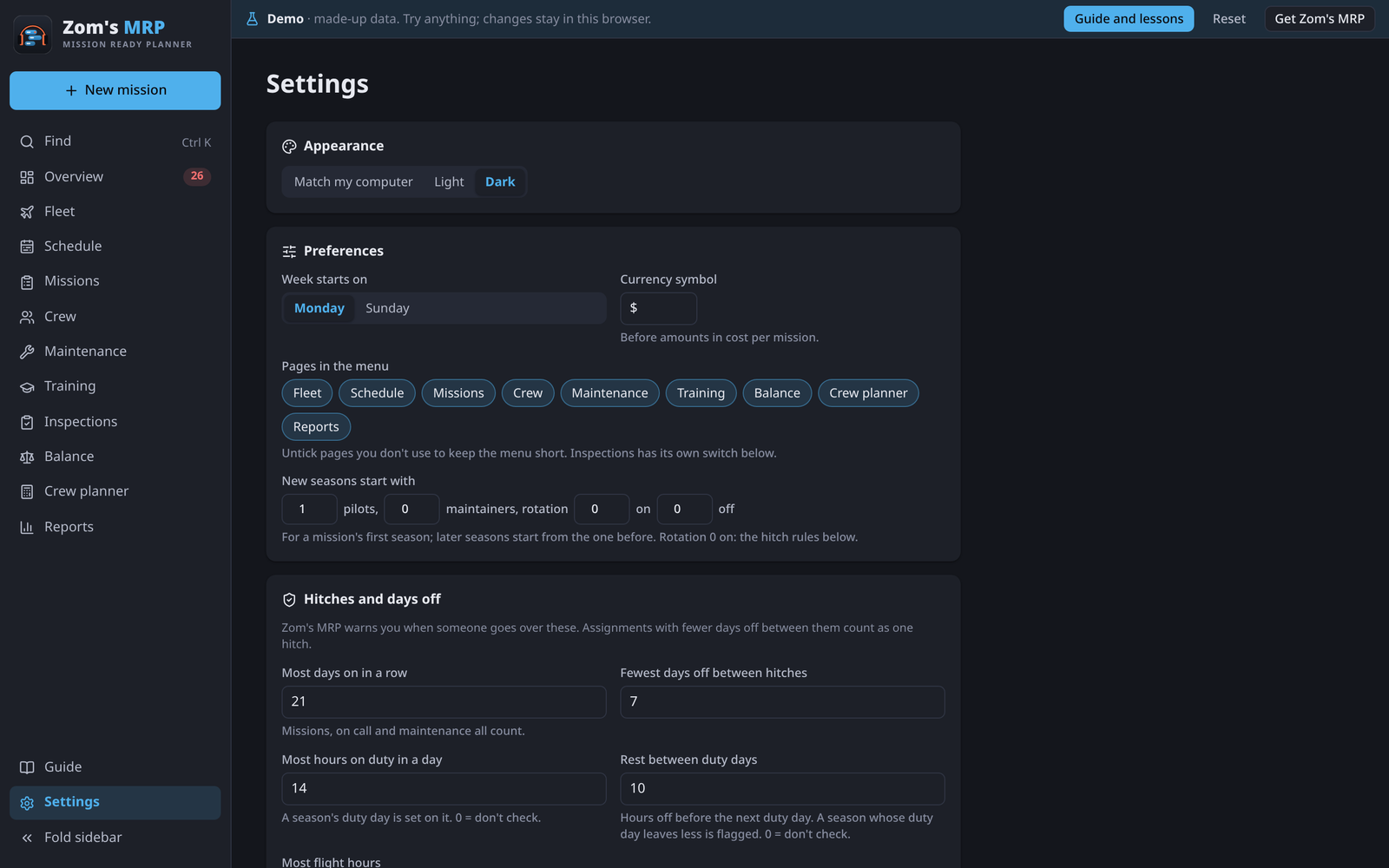
Every setting, in the same order as Settings in the app.
Server (server only)
On a server, admins see the people with access, the activity log and backups first. See People and roles and Backups and security. Everyone can Change password there.
Appearance
- Match my computer, Light or Dark.
Preferences
- Week starts on: Monday or Sunday.
- Currency symbol: shown before amounts in costs.
- Pages in the menu: untick pages you don't use (Fleet, Schedule, Missions, Crew, Maintenance, Training, Balance, Crew planner, Reports) to keep the menu short. Inspections has its own switch.
- New seasons start with: the pilots, maintainers and rotation of a mission's first season. Later seasons start from the one before. A rotation of 0 on uses the hitch rules.
Hitches and days off
- Most days on in a row, Fewest days off between hitches.
- Most hours on duty in a day, Rest between duty days.
- Most flight hours: one or more limits, like 100 in 30.
- Current on a type: days since a pilot last flew it.
- Warn before training runs out: days ahead.
All of them are explained in Work limits.
Kinds of contract
- Named sets of days on and off, such as EMS or fire, that a mission can pick. Add a kind of contract; the bin removes one, and its missions go back to the rules above. See Kinds of contract.
Maintenance programs
- Track inspections and flight hours here: turns inspections on or off.
- Plan inspections automatically: books due inspections when the app opens.
- Flight hours on a mission day: for tails without their own.
- Due soon: days ahead.
See Maintenance and inspections.
Your data
Called The plan on a server.
- Open folder (desktop app): shows where the plan is kept.
- Save a backup: a file of the whole plan.
- Import from Excel or CSV… and Download the import template.
- Export to Excel: the whole plan as a workbook.
- Restore a backup…: replaces the plan with a backup (admins only on a server).
- Clear all data…: deletes everything, after you type DELETE.
See Data and backups.
Excel copy for Teams (desktop app only)
- Choose a folder… to keep an Excel copy there, with Write it now, Show it and Stop keeping a copy. See Reports and sharing.
Shortcuts
- The keyboard shortcuts, and Open the guide. See Keyboard shortcuts.
About
- The version, and Send feedback.
- Check for updates and Download new versions by themselves (desktop app only). See Updating.
Related
- Work limits: the hitch and flight rules in full.
- Data and backups: backups, imports and clearing.
- Setting up a server: the server's own settings.