
Missions and seasons
A mission is one customer's kind of work, like "Interior Fire Service". A season is one stretch of dates it flies. Go to Missions and tap one to open it.
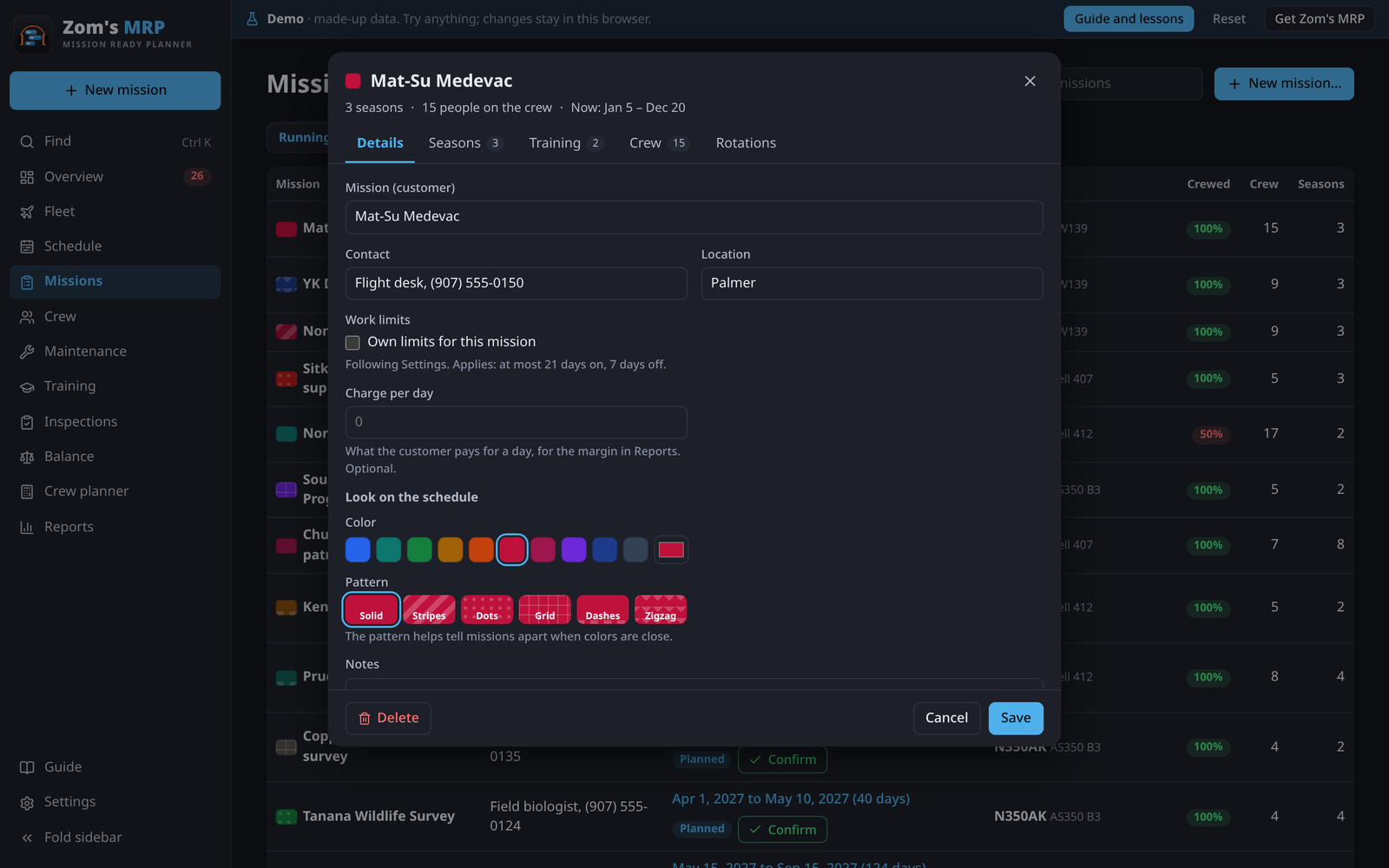
Missions keep what stays the same
A mission's tabs:
| Tab | What's on it |
|---|---|
| Details | Name, contact, location, Kind of contract, Charge per day, its color and pattern on the charts, and its own Work limits |
| Seasons | Its stretches of dates, with how well each is crewed and its status |
| Training | The courses its crew need. Only people on this mission need them. |
| Crew | The people who usually work it. They get first pick when the schedule is filled. |
| Rotations | Each running or coming season's hitches in order: who, when, handovers and open seats |
Names don't need a year: that's what seasons are for. Each mission's color and pattern keep it apart from the others, even printed in grey.
Seasons hold the dates
Open a season from the mission's Seasons tab, or tap its bar on the Schedule.
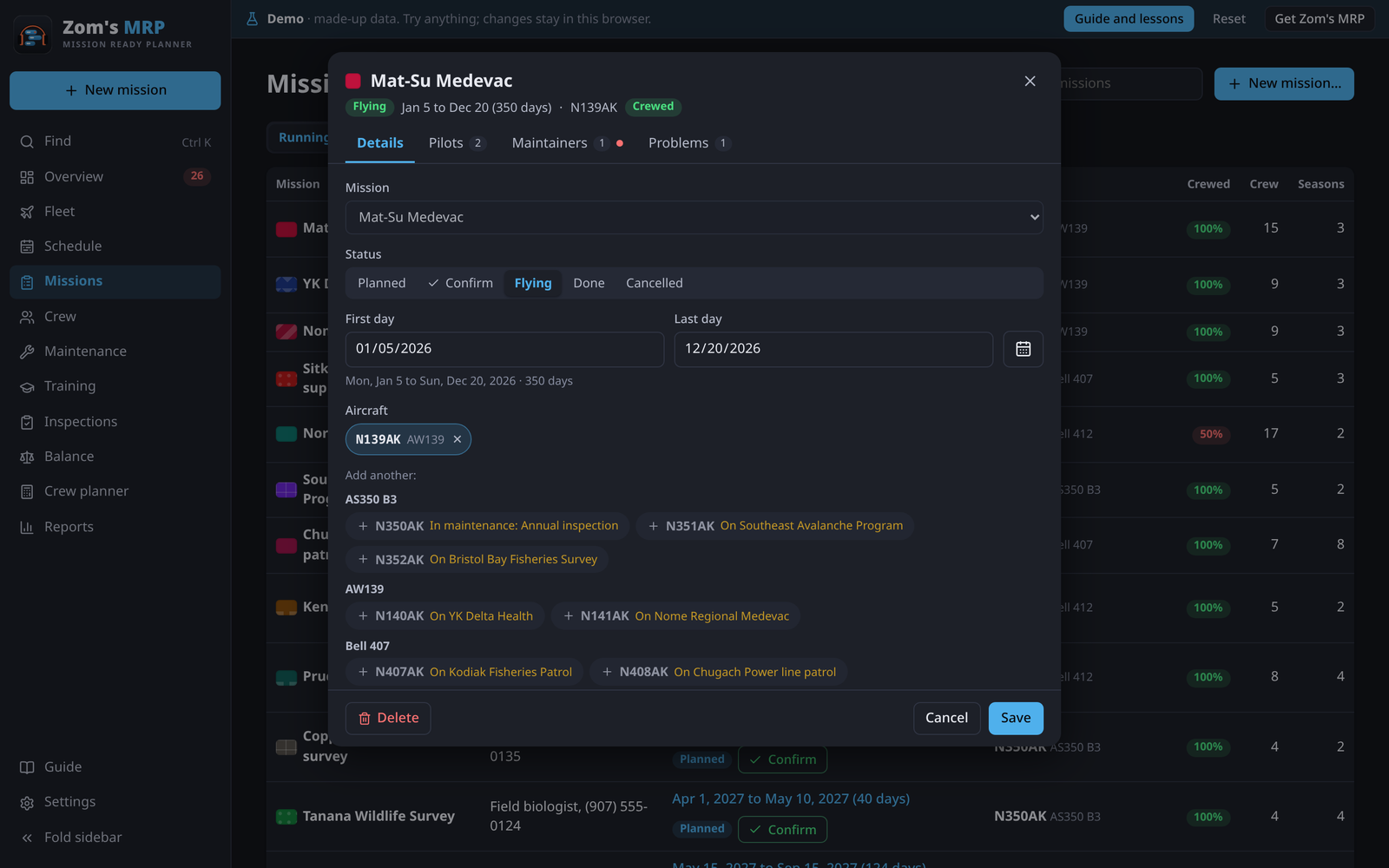
On Details:
| Field | What it does |
|---|---|
| Status | Planned, Confirmed, Flying, Done or Cancelled. A planned one has Confirm at the top. |
| First day, Last day | Whole days. Tap the calendar to pick them. |
| Aircraft | Tap tails to add them, grouped by type, each saying whether it's free or what it's busy with. Add them whenever they're known. |
| Pilots needed, Maintainers needed | How many at a time, across all its aircraft |
| When maintainers are needed | All the time, Days a week, Start and end (set-up and tear-down) or On call (never a gap) |
| Pilot rotation, Maintainer rotation | Like 14 on, 7 off. They can differ. |
| Hours on duty in a day | Optional. Longer than allowed, or leaving too little rest, is flagged. |
| Work limits | This season's own days on and off, with Override (Work limits) |
Pilots and Maintainers show how much is crewed, then one line per shift with open seats in date order. Problems lists this season's problems and fixes them in place. A red dot on a tab means something there needs a look.
Everyday jobs
A customer wants more days
- Open the season and change the Last day (or first day) on Details.
- On Pilots, press Fill the schedule to crew the new days. Do the same on Maintainers.
- Press Save.
Book the same job next year
On the mission's Seasons tab, press Copy to next season. It copies the dates a year on, with the same aircraft, crew numbers and rotation, and opens the new season.
Confirm or cancel several seasons
Tick seasons on the mission's Seasons tab to confirm, cancel or delete them together.
Related
- Filling the schedule: crewing a season.
- Crew planner: how many pilots a season needs.
- Work limits: kinds of contract and own limits.
- Costs: charge per day and the margin.