
Schedule
The Schedule is the whole plan as a Gantt chart. Pick Aircraft, Missions or Crew at the top to choose the rows, and a mission from the list to see only its work.
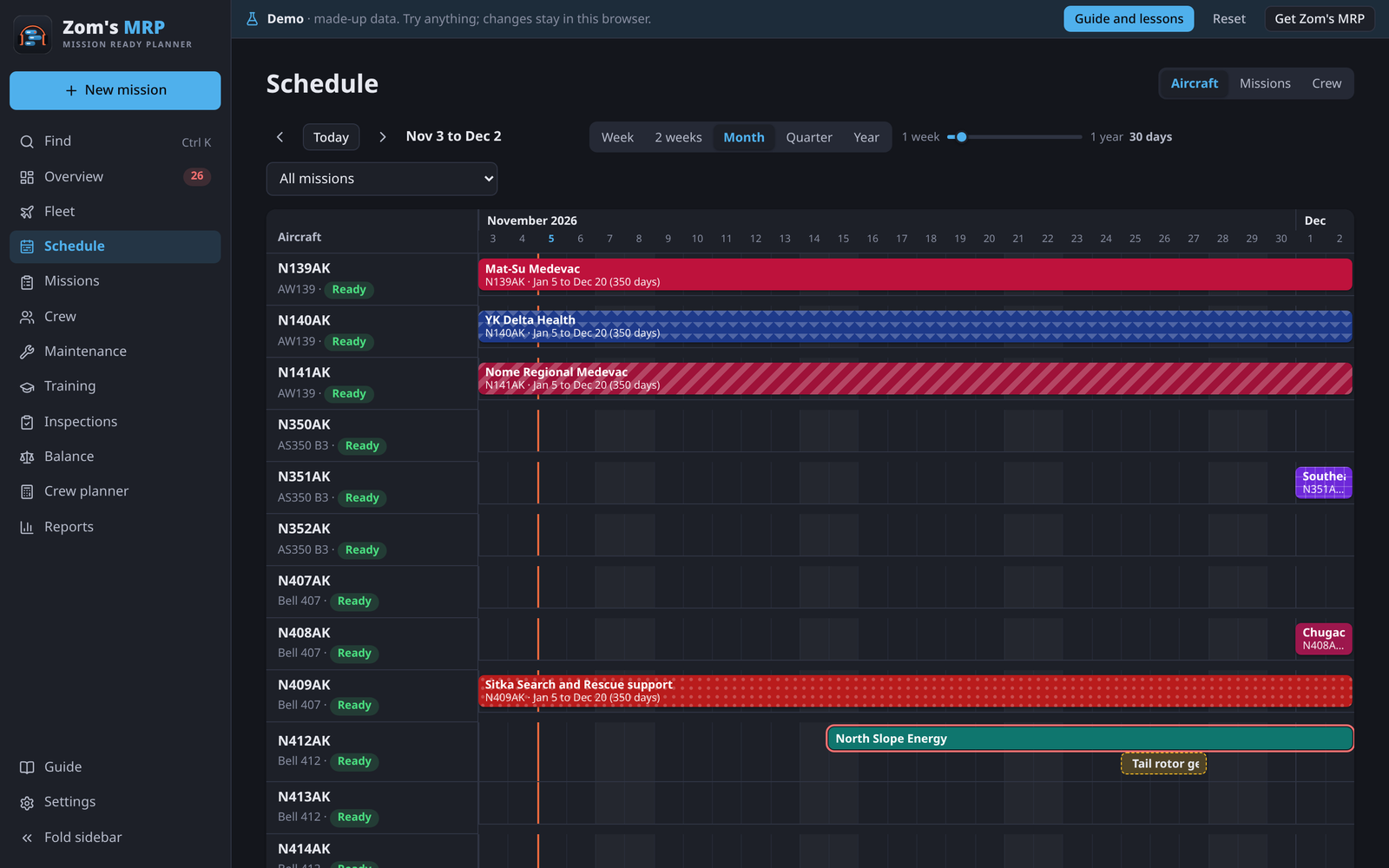
The three views
| View | Rows |
|---|---|
| Aircraft | One row per tail, with the missions on it |
| Missions | One row per mission, with its crew under it |
| Crew | Open seats first, as red dashed slots, then one row per person |
With a mission picked, the crew view shows the people on it, then the people who are rated and current but not on it yet, with their days already booked. That's the quickest way to find who can cover some dates.
Moving around
| Do this | To |
|---|---|
| Week to Year, or the slider | Zoom to that span |
| Ctrl + scroll, pinch, or + − | Zoom in or out |
| Drag, Shift + scroll, swipe, or ← → | Move through time |
| Today or T | Jump to today |
The line down the chart is the start of today. Each mission has its own color and pattern, and anything with a problem has a red outline.
Changing shifts on the chart
- Move a shift's first or last day: grab either end (the cursor turns into ↔) and drag. The new day shows above the bar. Where someone takes over from them (⇄ on the bar), the next person's first day moves too, so the seat stays covered. Hold Alt (Option on a Mac) to move just the one.
- Move a whole shift: drag its middle.
- Give it to someone else: drop it on their row. It only goes if they can legally take it.
- Open it: tap the bar to open its season.
Undo is in the message after each change.
What's on a bar
A shift shows the mission, the aircraft and any note ("Bring the cold-weather kit"). Off days of a fixed rotation are shaded, and time off that's only a preference shows lighter.
Related
- Missions and seasons: what a bar opens.
- Filling the schedule: crewing a season in one go.
- Crew and time off: trading shifts.
- Keyboard shortcuts: every key.