Phones and tablets
Zom's MRP is laid out for small screens. Open your team's server in the phone's browser and sign in, or try the live demo on the phone.
Getting around
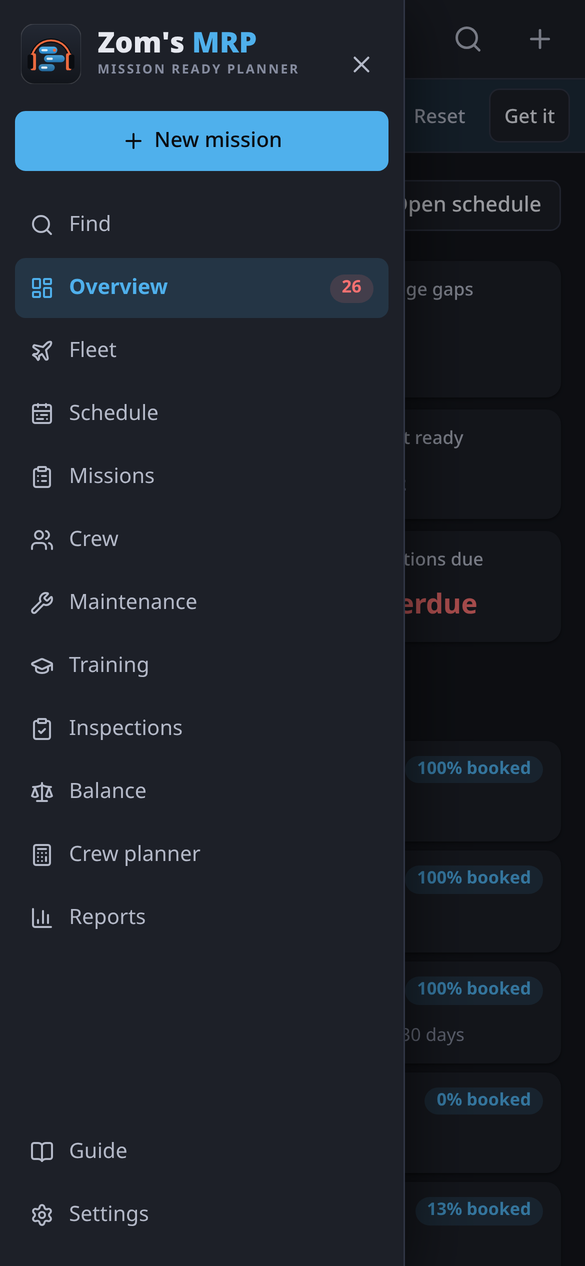
- ☰ at the top left opens the menu of pages. + at the top right starts a new mission, and the magnifier finds anything.
- Lists are cards instead of tables, and the summary tiles sit two to a row.
- The phone's back button steps back through what you opened: from a season to its mission, then to the page before.
Charts
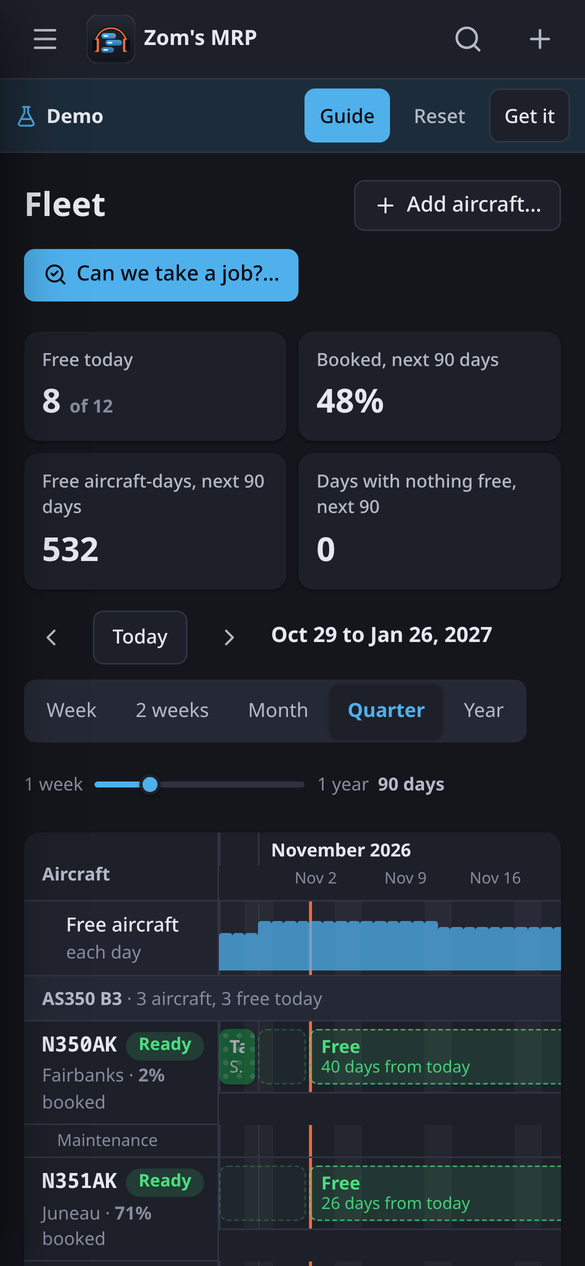
Charts are wider than a phone. Swipe sideways to move through time, and pinch to zoom.
Forms
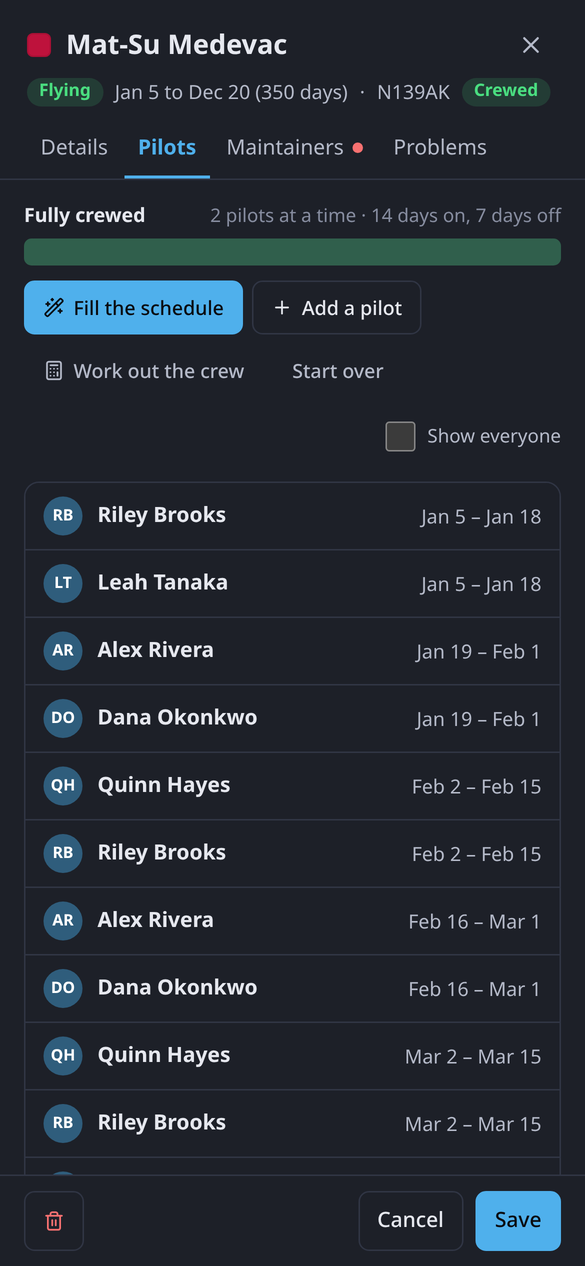
Forms open full screen. Their tabs are along the top, Save and Cancel along the bottom. The back button closes a form without saving, and asks first if you've changed something.
Tablets
On a tablet, missions, crew, maintenance and training show as cards two across. A phone turned sideways keeps the phone layout.
Adding it to the home screen
In the phone's browser menu, choose Add to Home screen (Android) or Share > Add to Home Screen (iPhone and iPad). It then opens like an app.
Related
- Setting up a server: what the phone signs in to.
- Schedule: the chart in full.
- Troubleshooting: when the phone can't reach the server.