
Quick start
This takes you from nothing to a mission with its crew filled in, in about 15 minutes. When you want more, the advanced pages and set-up scenarios are next.
Just want to look? The live demo is already filled in, with lessons in its Guide.
1. Install Zom's MRP
| Device | What to do |
|---|---|
| Windows | Download Zom’s MRP_(version)_x64-setup.exe from the latest release and open it. If Windows says "Windows protected your PC", click More info > Run anyway. |
| Mac | Download the .dmg, open it and drag Zom's MRP to Applications. The first time, allow it in System Settings > Privacy & Security > Open Anyway. |
| Linux | Download the .deb, .rpm or .AppImage and open it with your software installer. |
| A team | Set up a server instead, and everyone signs in from their browser. |
More in Installing and updating.
2. Open it
Zom's MRP opens empty. The Getting started card on the Overview lists what to add, in order, with a button for each step. Each step needs what the one before it added, so follow them top to bottom.
If you're asked Do your pilots have a flight-hour limit?, put in yours (like 100 hours in any 30 days) and press Set this limit, or press No limit. It can be changed later in Settings > Hitches and days off.
3. Add your aircraft
- Press Add aircraft….
- Type the Tail number (like N412ZM), its Type (like Bell 412) and its Pilot seats.
- Press Add aircraft at the bottom. Add the rest the same way.
They now show on the Fleet page, grouped by type.
4. Add your training courses
- Press Add training….
- Name the course (like Night vision goggles) and set Renew every (months), or 0 if it never runs out.
- Press Add training at the bottom.
Only add the courses some mission needs. People only need the training of the missions they work.
5. Add your pilots and maintainers
- Press Add pilot….
- Type their name, and on Ratings and missions tap the aircraft types they're rated on.
- On Training, press Add training for each course they've done and set the day they did it. Runs out fills in by itself.
- Press the button at the bottom to add them. Then add your maintainers the same way with Add maintainer….
Bringing in a long list? Use Settings > Your data > Import from Excel or CSV… (Data and backups).
6. Add a customer as a mission
- Press New mission….
- On Details, type the customer's name, a contact, and pick a color and pattern for the charts.
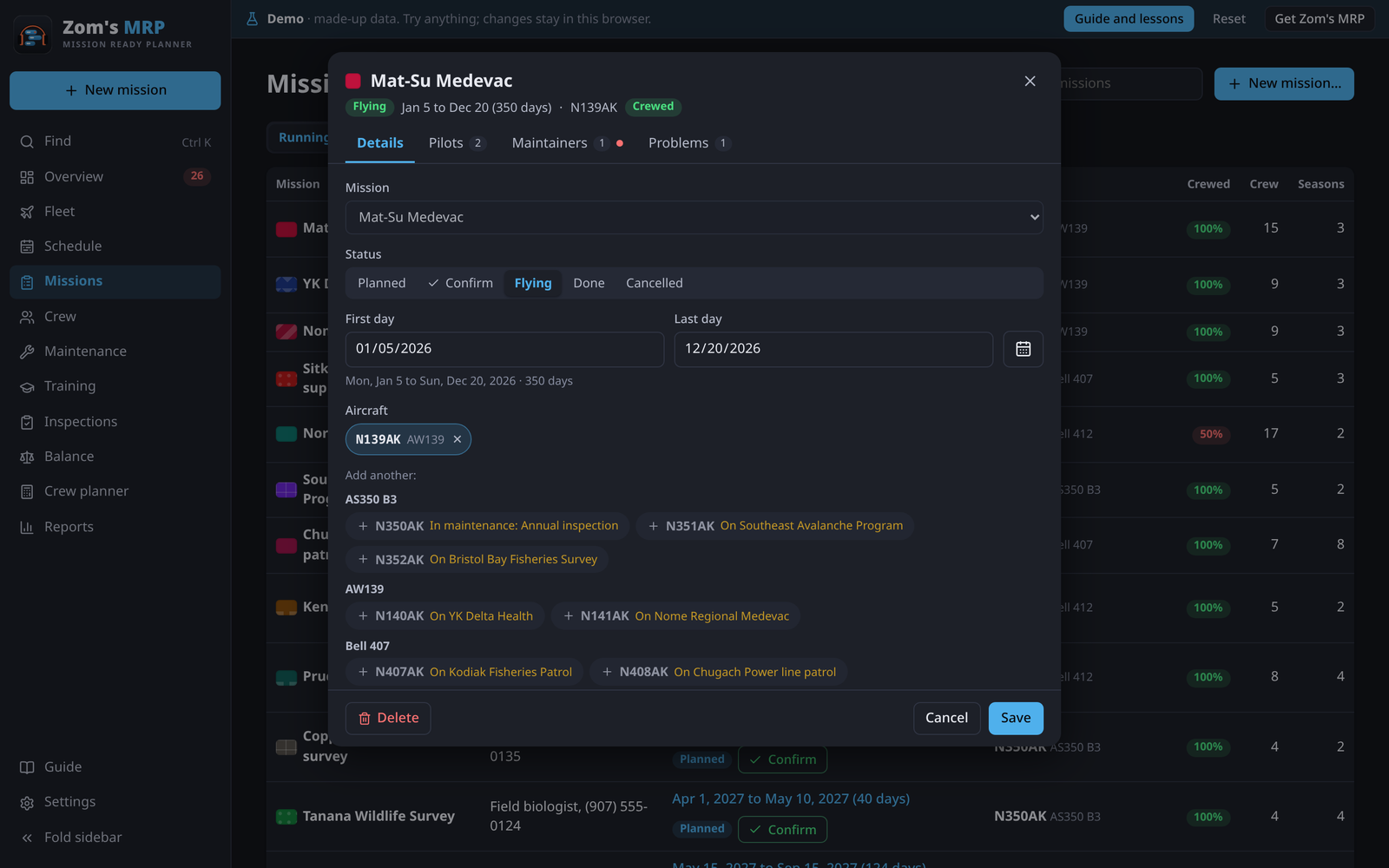
- On First season, pick the first and last day, tap the aircraft, set how many pilots and maintainers it needs at a time, and the rotation, like 14 on, 7 off.
- On Training, tap the courses its crew need. On Crew, tap the people who usually work it.
- Press Add mission.
7. Fill the schedule
- Open the mission, then its Seasons tab, and tap the season.
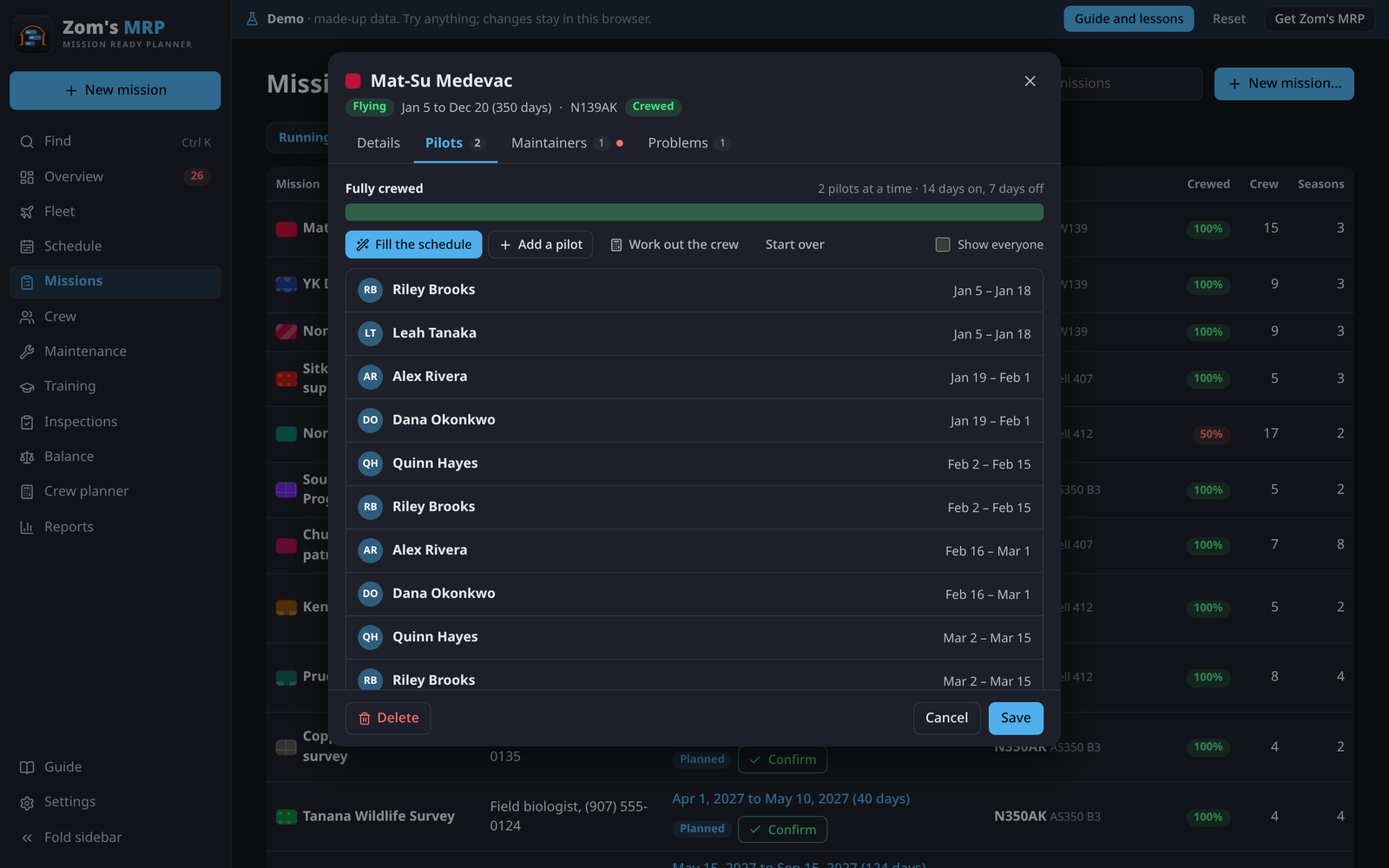
- Go to Pilots and press Fill the schedule. Zom's MRP rotates rated, current, free people through it, the mission's own crew first.
- Do the same on Maintainers, then press Save.
Days nobody can cover stay open, so you see them. Not sure how many pilots you need? Work out the crew opens the Crew planner for this season.
8. Check the Overview
The Overview lists every problem, worst first: open seats, double bookings, missing ratings, training that runs out. Each one has a button that opens the right form at the right place. Make it the first thing you look at each day. More in Overview and problems.
Five habits that save time
- Ask the Fleet page first. When a customer calls, Can we take a job? says which tails and crew could do it.
- Copy next year's season. Copy to next season books the same job a year on, with the same setup.
- Undo is always there. Ctrl Z (⌘ Z on a Mac) undoes any change.
- Find anything. Ctrl K finds a tail, a person or a mission by name.
- Save a backup now and then. Settings > Your data > Save a backup.
Where next?
- Missions and seasons: everything a season can hold.
- Crew planner: how few pilots a job takes.
- Work limits: days on and off, rest and flight hours.
- Set-up scenarios: your situation, step by step.