Profiles and Play
A profile is a set of mods for one game, in load order: later mods win when two have the same file. A game can have as many profiles as you like (a light one and a heavy one, say), and one is in the game at a time.
Play
Play puts the profile's mods into the game's mod folder (Data for Skyrim and Fallout, Mods for Stardew Valley…), takes the last profile's out, and starts the game. Mods are hard links from your library, so they take no extra space on the same drive. The game's own files that a mod replaces are kept in .zoms-modzilla-backup and put back with Take mods out. Only what changed moves, so switching profiles is quick.
The conflict check
It runs by itself whenever a profile changes:
- files more than one mod has, and which one wins,
- mods missing what they need (from Nexus Mods), with Get buttons,
- plugins missing a master, or loading before it,
- mods packed a folder too deep,
- loaders that need a Steam launch option under Proton (with the text to paste),
- mods that run code but are older than the game's last update.
Load order
Drag mods, or add rules ("load this after that") that are kept whenever the order changes. For Bethesda games, Sort plugins (LOOT) sorts the plugin order with LOOT's community masterlist, kept apart from the mod order.
Saves
A profile can keep its own saves, so a heavily modded playthrough never touches your normal saves. Save snapshots copy a game's saves before you try something risky (or before every Play), and restoring never deletes anything.
Look inside a mod
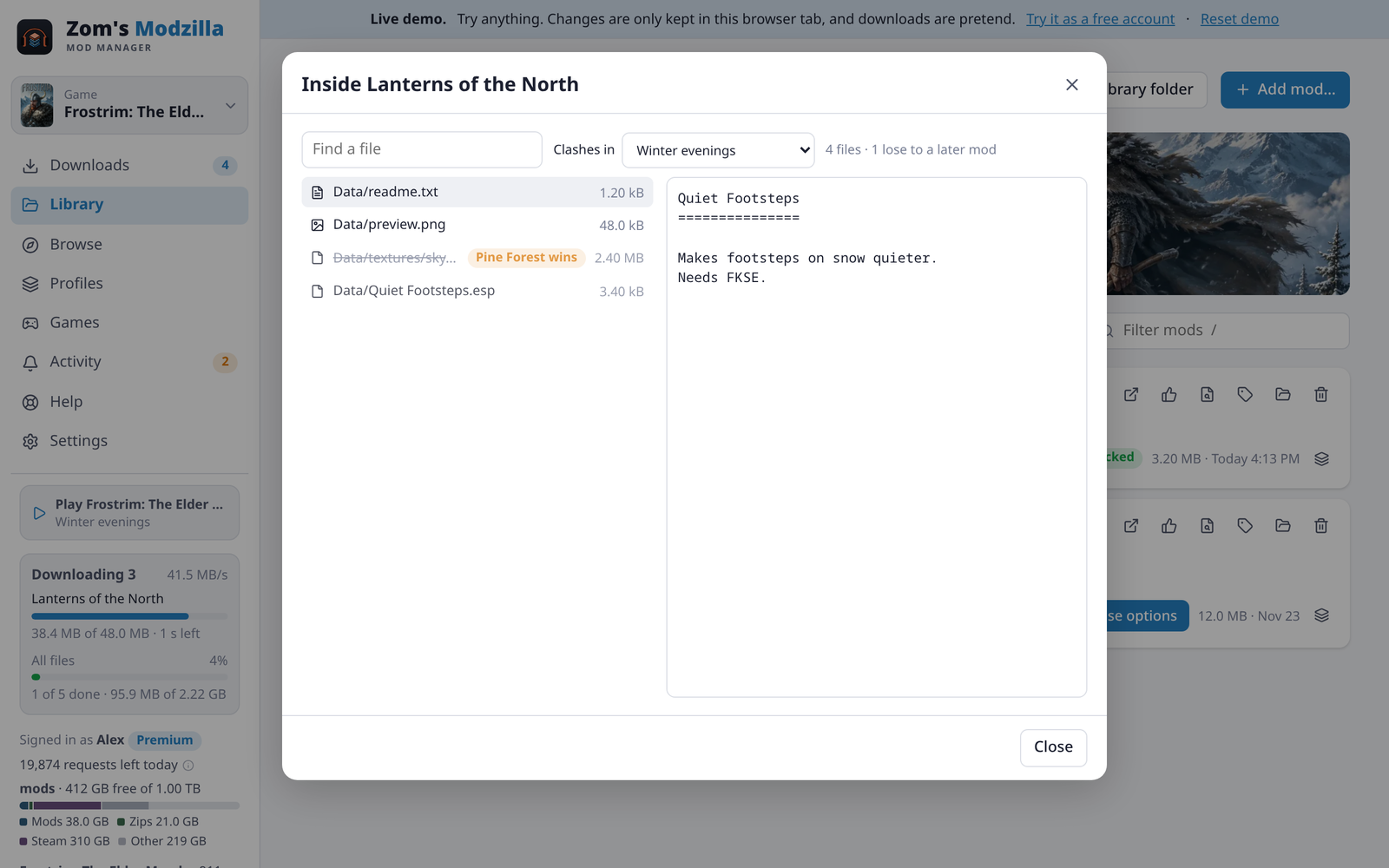
In the Library, Look inside shows a mod's files, which ones lose to a later mod in the profile, and its pictures and readmes.