
Game tools
On Games, the wrench on a game opens its Game tools.
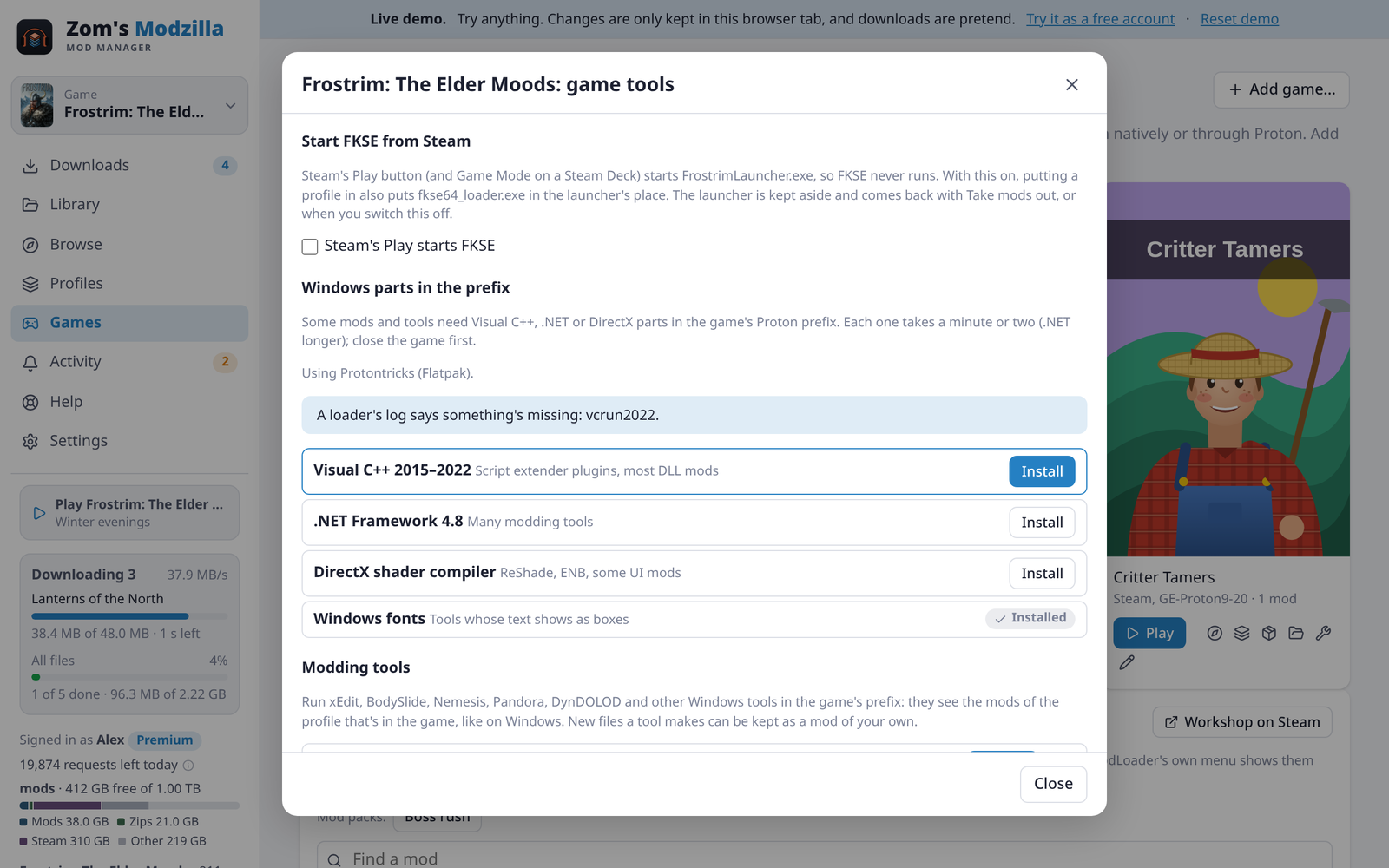
Steam's Play starts the script extender
For Skyrim (SKSE), Fallout 4 (F4SE), New Vegas (NVSE), Fallout 3 (FOSE) and Oblivion (OBSE). Steam starts the game's launcher, so the extender never runs, which matters most in Game Mode on a Steam Deck. With this on, putting a profile in also puts the extender's loader where the launcher was. The launcher is kept aside with the game's other files, and comes back with Take mods out, or when you switch this off.
The extender has to be in the game folder or in a mod of the profile. Get it from Loaders below.
Windows parts in the prefix
Some mods and tools need Visual C++, .NET or DirectX parts in the game's Proton prefix. Each one installs with Protontricks (for Steam games) or winetricks (for others). When a loader's log says a part is missing (MSVCP140.dll, say), it's marked.
On a Steam Deck, install Protontricks from Discover in Desktop Mode first. Close the game before installing.
Modding tools
Add xEdit (SSEEdit, FO4Edit…), BodySlide, Nemesis, Pandora, DynDOLOD or any other Windows tool by its .exe, and press Run: it starts in the game's prefix, with the game's Proton, and sees the mods of the profile that's in the game.
When the tool closes, Zom's Modzilla lists the new files it made in the mod folder (Nemesis' behaviours, DynDOLOD's output) and offers to keep them as a mod: they move into your library and go in and out with the profile. Files that were already there are never touched.
Loaders
- From Nexus Mods: Cyber Engine Tweaks, redscript, RED4ext, ArchiveXL and TweakXL for Cyberpunk 2077; SKSE and Address Library for Skyrim; F4SE for Fallout 4.
- UE4SS for Unreal Engine games, from its GitHub releases.
- ReShade (DirectX 10–12, or 9), from reshade.me, with the standard shaders.
Each becomes a mod in your library: add it to a profile. Under Proton, UE4SS and ReShade need a launch option (WINEDLLOVERRIDES="dxgi=n,b" %command% for ReShade); the conflict check says exactly what to paste.