
The library
The Library page lists every mod you have, for the game picked in the sidebar (or every game).
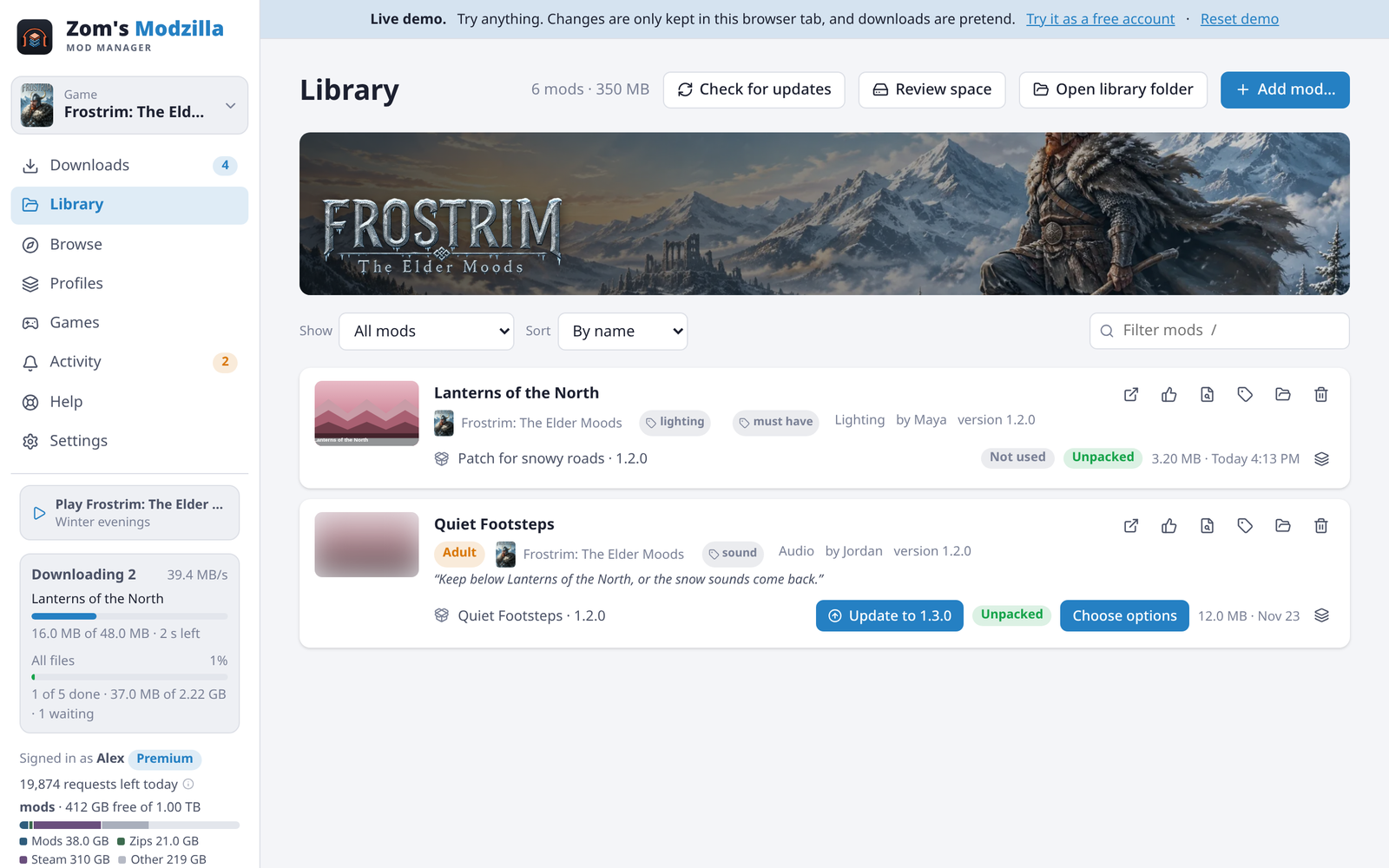
Where mods are kept
Each mod gets its own folder under its game, in the library folder (Settings › Storage › Library folder, ~/Games/Nexus Mods at first):
~/Games/Nexus Mods/skyrimspecialedition/266 - SkyUI/The folder holds the downloaded archive, the unpacked files, and a nexus.json saying what the mod is. A mod's files are never changed by putting it in a game: games get links to them.
A folder of its own for a game keeps one game's mods somewhere else, like the drive the game is on (an SD card, say). Moving copies everything first and only then deletes the old copy. When a game and its mods are on the same drive, mods are linked into the game and take no extra space; on different drives they're copied.
Unpacking
With Unpack downloads on (the usual), zip, 7z and rar files are unpacked when they finish. Keep archives after unpacking keeps the original too, so you can unpack it again. Anything still packed is unpacked when a profile needs it, or with Unpack on the mod.
Mods with an installer (FOMOD) ask their questions when they go into a profile: see Mod installers.
Finding mods
Search by name, filter by tag, or show only what needs attention:
- Not in any profile: mods you have but don't use.
- Gone from Nexus Mods: mods their authors hid or removed. You keep your copy.
- Mods marked adult by Nexus Mods are tagged Adult; Settings › Adult mods can blur their pictures or hide them from Browse.
Sort by name, newest or biggest, and see how much space each takes.
Updates
Check for updates looks for newer versions of the files you have, with Get the update… for each one, or all of them. Each mod's changelog shows what changed.
Looking inside a mod
Look inside shows a mod's files and where each goes in the game, which ones lose to a later mod in a profile, and its pictures and readmes.
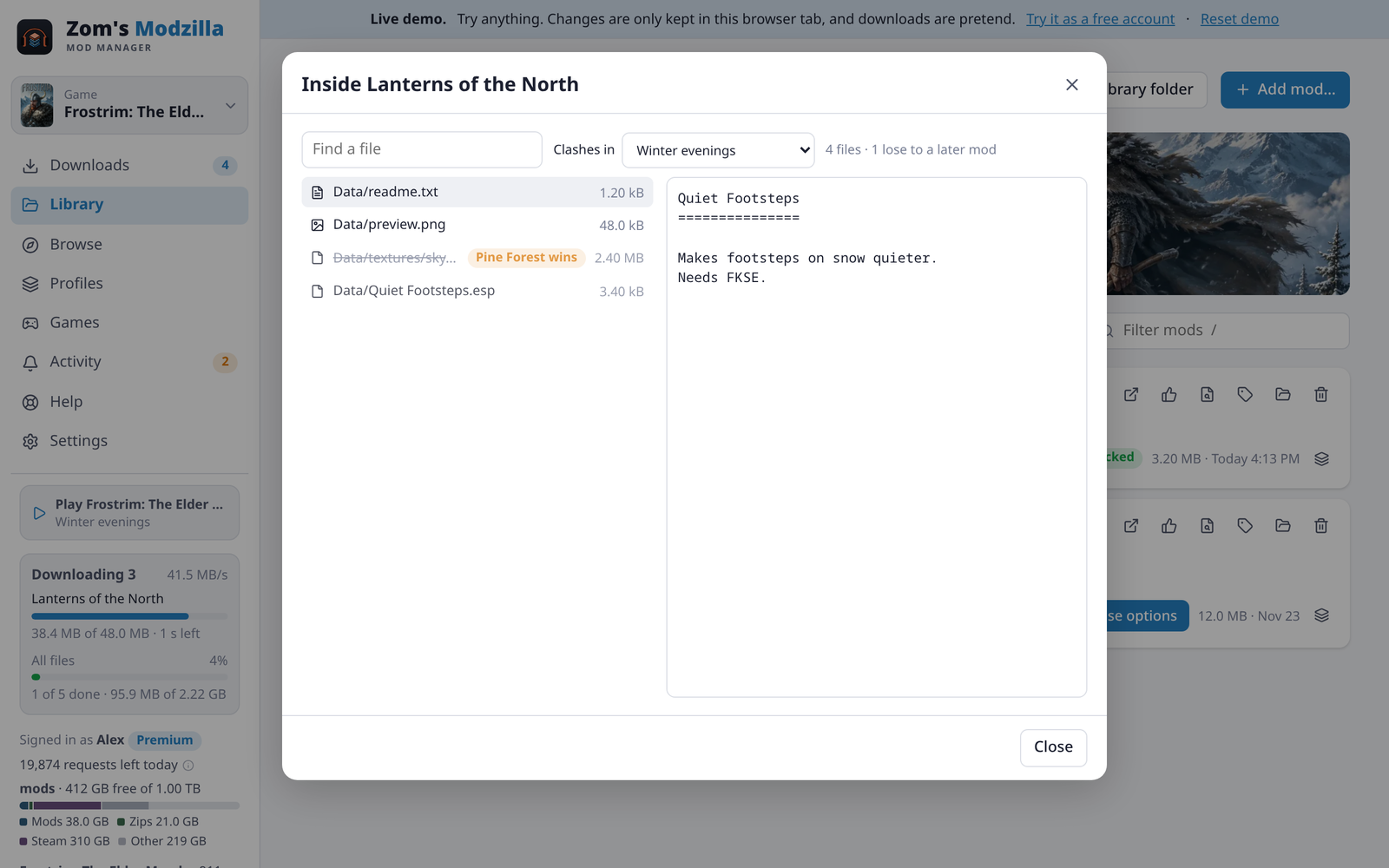
Your own mod files
Choose file… on the Library page adds a mod from a zip, 7z or rar on your computer: one from another site, or your own. It works like any other mod, except it's never looked up on Nexus Mods or put in mod packs (others couldn't download it).
Files a modding tool makes can also become a mod of your own: see Game tools.
Tags and notes
Right-click a mod (or press X on a controller) for Tags… and Add a note…. Tags are yours to use however you like ("textures", "testing", "keep"); notes are for what to remember ("needs the 1.2 patch").
Endorsing and tracking
When you're signed in, the 👍 button endorses a mod on Nexus Mods: it tells the author thanks. Track on Nexus Mods (right-click) adds it to your tracked mods on the website. Both are sent only when you press them.
Deleting
Delete mod… removes a mod's folder from the library. Deleting one file of a mod keeps the others.